Create Security Group
Creating Security Groups for Your VPC
ℹ️ What are Security Groups?
Security groups act as virtual firewalls for your Amazon EC2 instances to control inbound and outbound traffic. They operate at the instance level and can be configured with rules that allow specific traffic based on protocol, port, and source/destination.
Step-by-Step Security Group Creation
Public Subnet Security Group
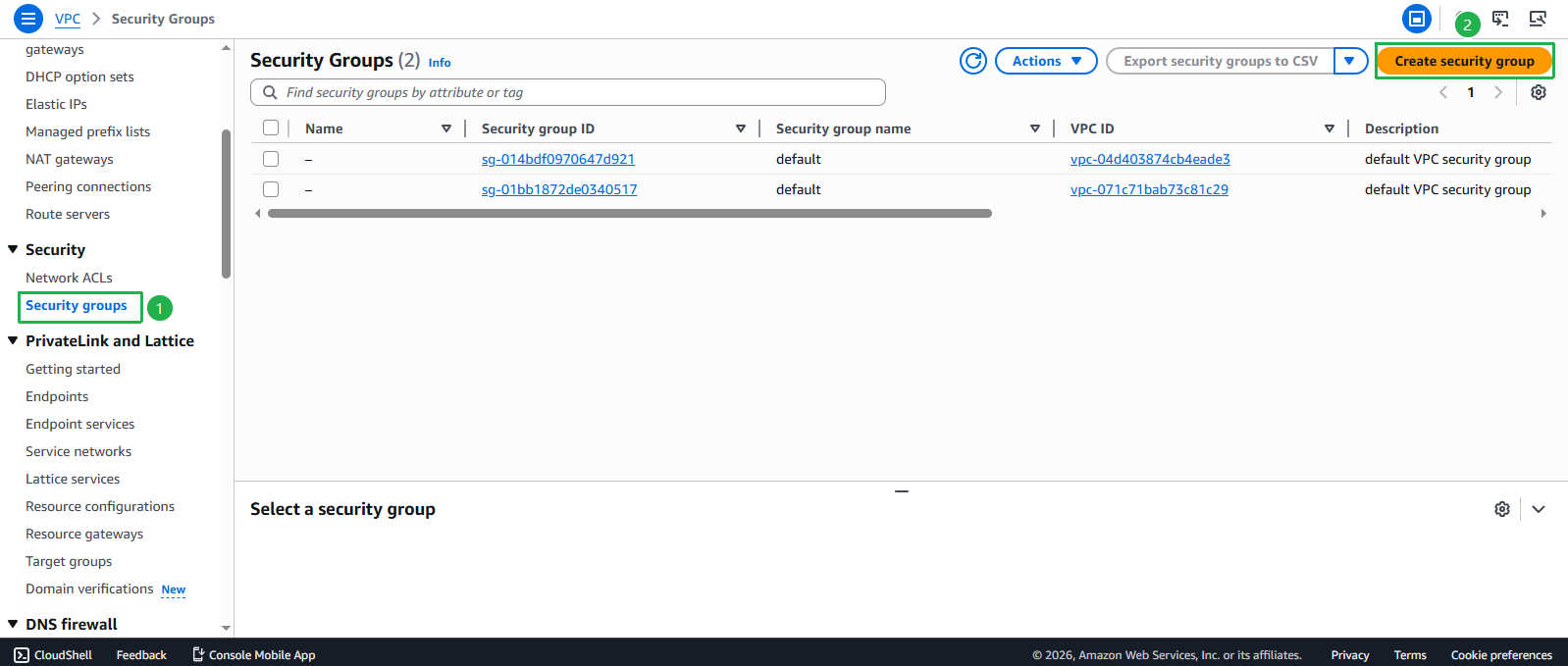
- Access the Security Group interface:
- Navigate to the VPC console
- Select Security Groups from the left navigation panel
- Click Create security group
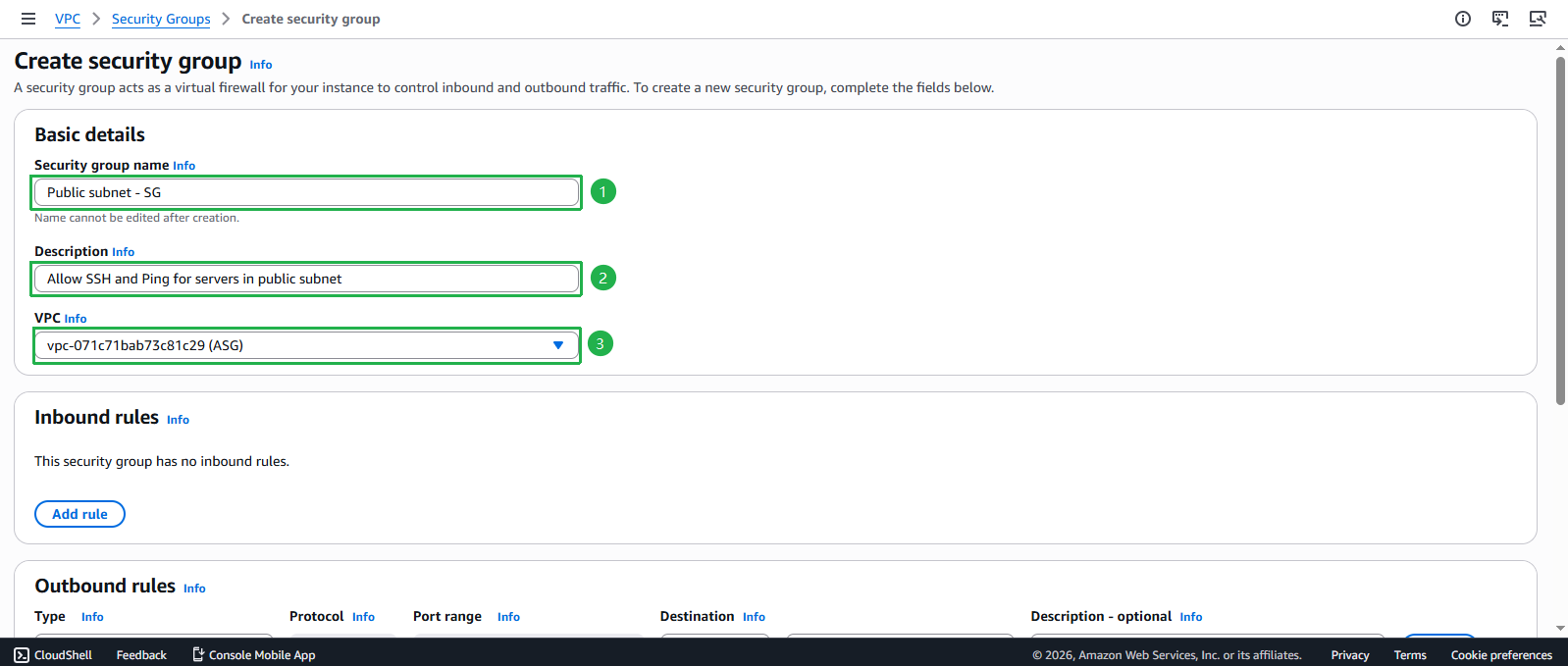
- Configure the Public Subnet Security Group:
- Security group name: Enter
Public subnet - SG - Description: Enter
Allow SSH and Ping for servers in the public subnet - VPC: Select the ASG VPC from the dropdown
- Security group name: Enter
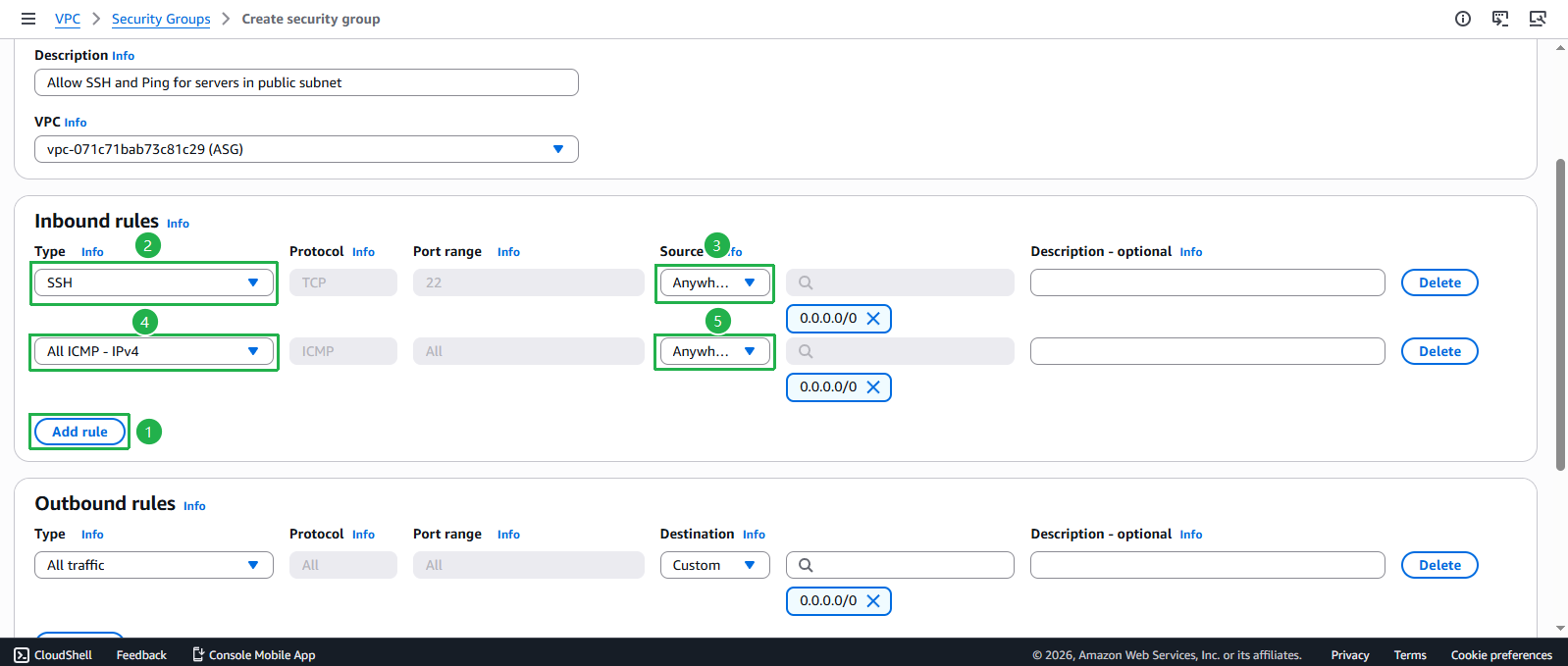
- Define inbound rules:
- Click Add rule
- Configure SSH access:
- Type: Select SSH
- Source: Select My IP (automatically uses your current public IPv4 address)
- Click Add rule again
- Configure ICMP access:
- Type: Select All ICMP - IPv4
- Source: Select Custom and enter 10.10.0.0/16 (VPC CIDR only)
🔒 Security Best Practice
Restricting ICMP to your VPC CIDR block prevents external ping sweeps while maintaining internal connectivity testing capabilities.
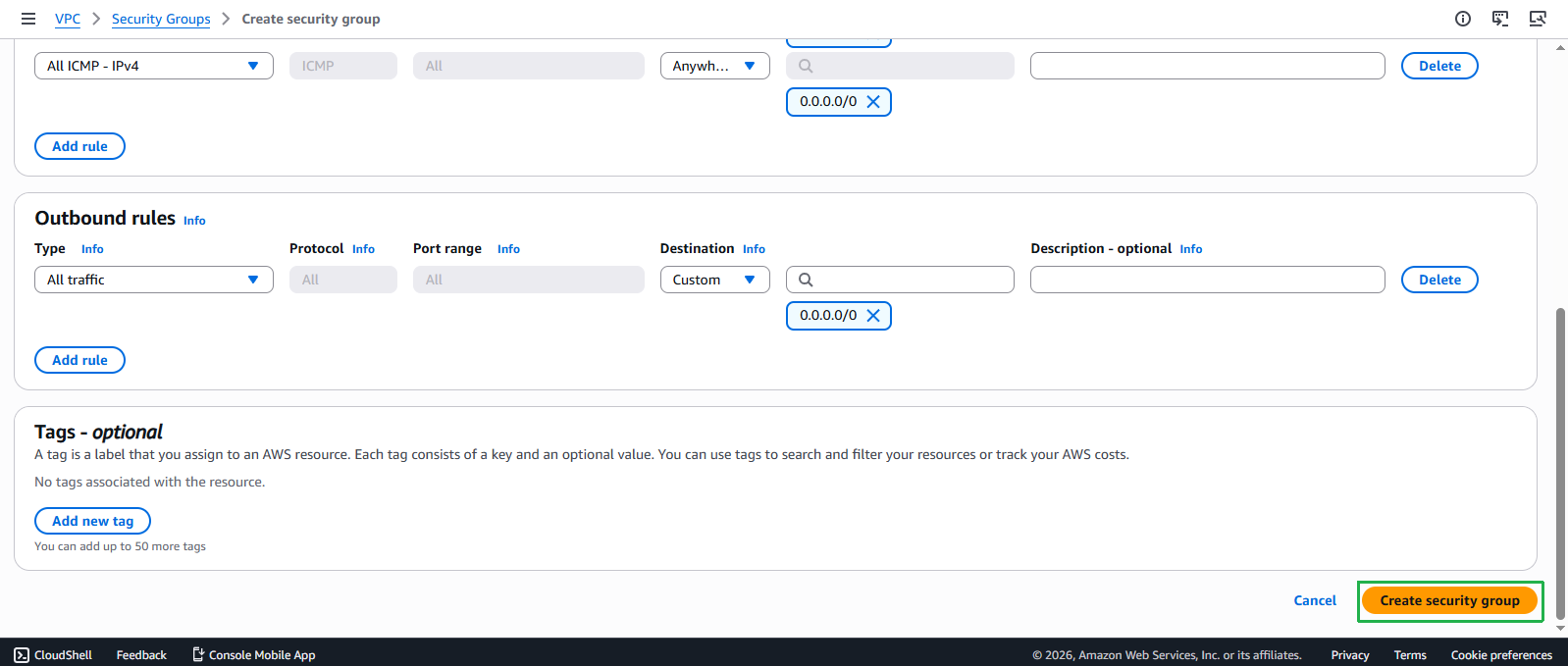
- Review outbound rules:
- By default, all outbound traffic is allowed
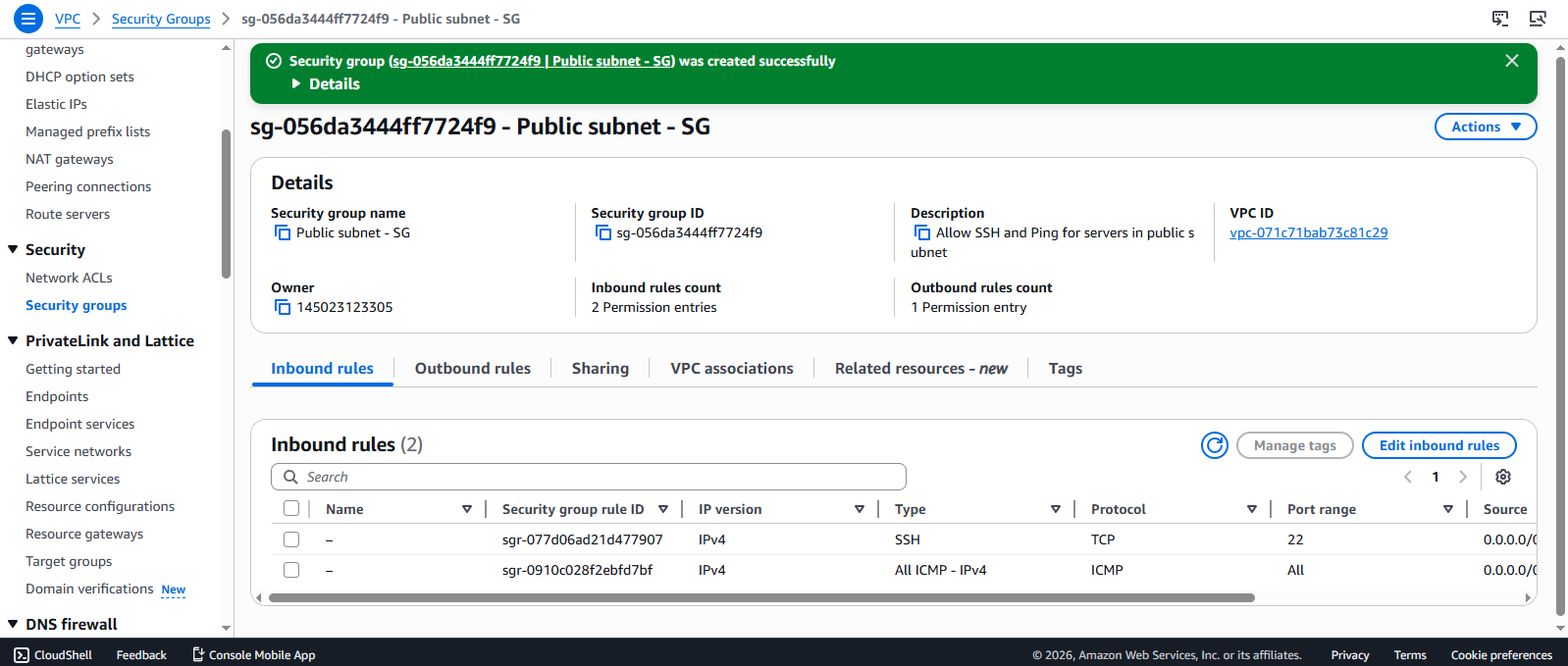
- Click Create security group
- Verify successful creation:
- You should see a success message
- Your new security group will appear in the list
Private Subnet Security Group
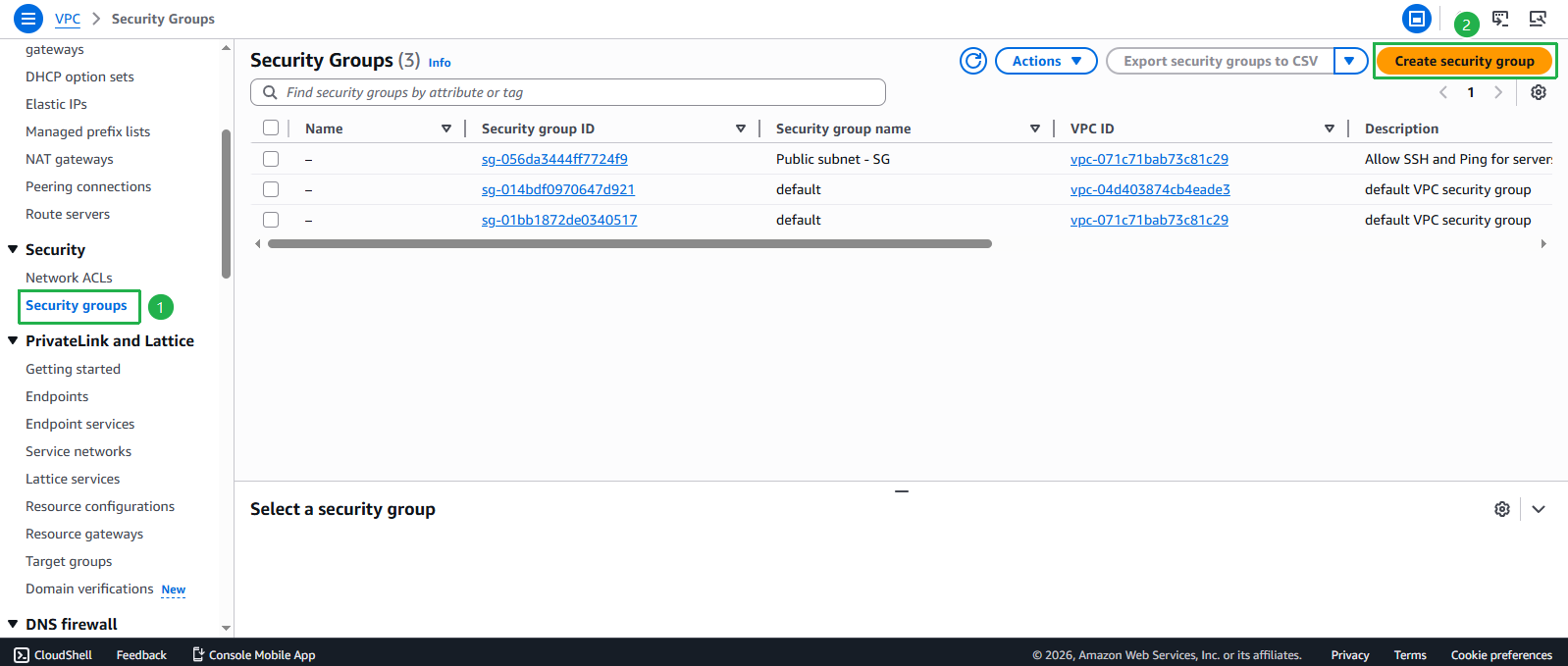
- Initiate another security group creation:
- Navigate back to Security Groups
- Click Create security group
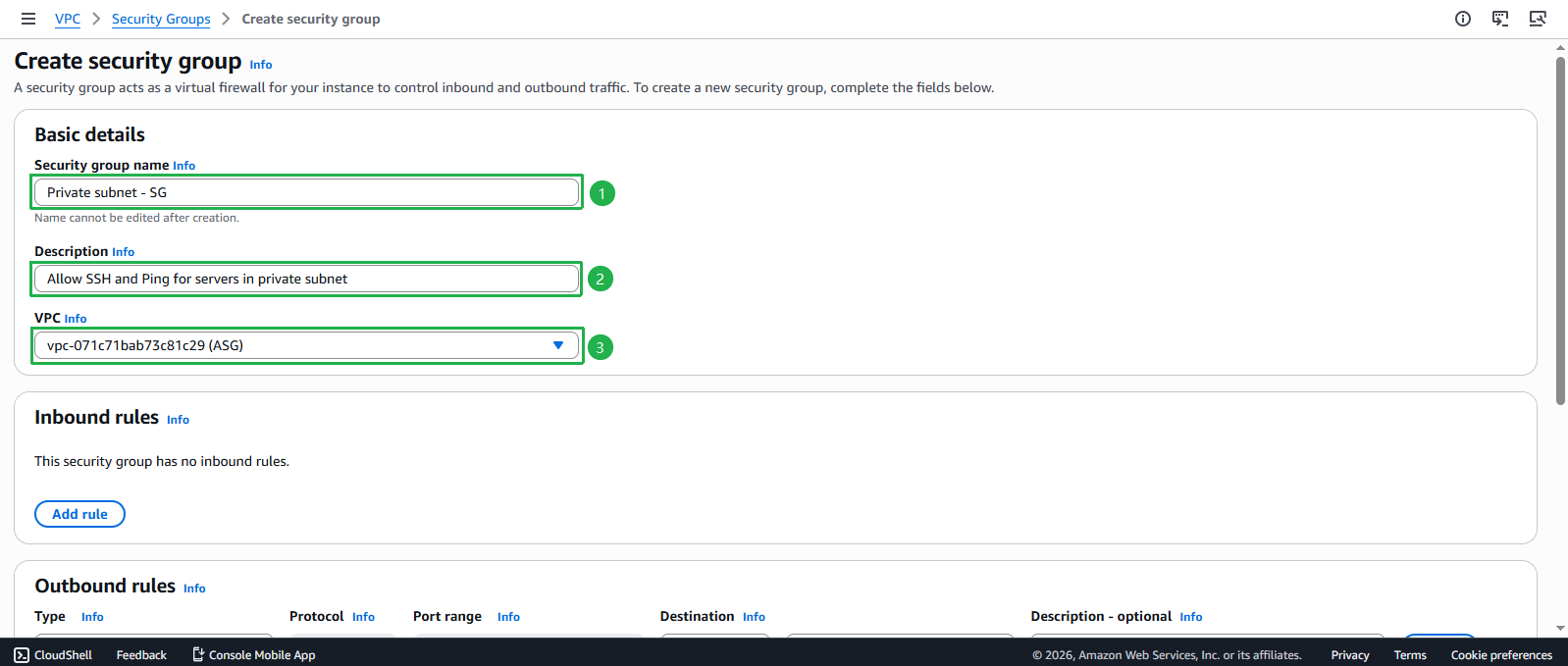
- Configure the Private Subnet Security Group:
- Security group name: Enter
Private subnet - SG - Description: Enter
Allow SSH and Ping for servers in the private subnet - VPC: Select the ASG VPC from the dropdown
- Security group name: Enter
- Define SSH inbound rule:
- Click Add rule
- Configure SSH access:
- Type: Select SSH
- Source: Select Custom
- Search for and select Public subnet - SG (allows SSH access only from instances in the public subnet)
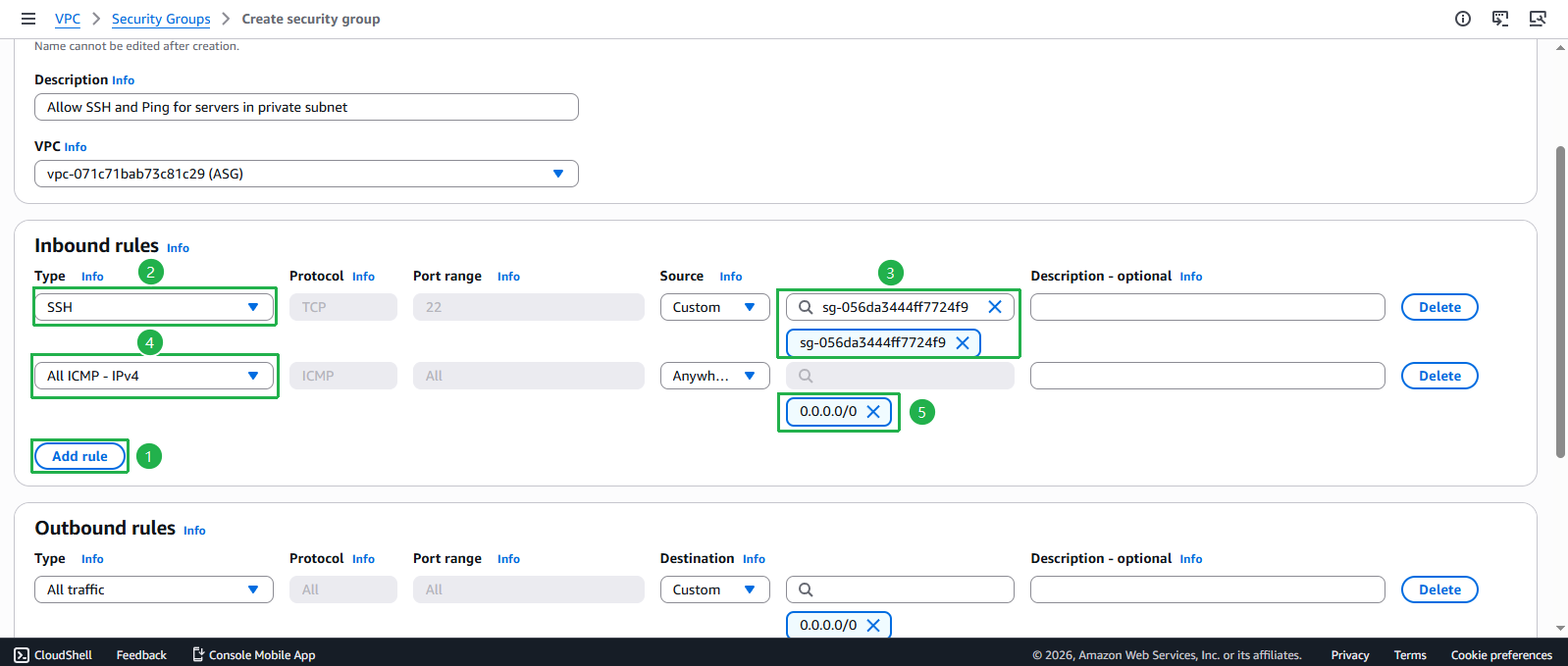
- Define ICMP inbound rule:
- Click Add rule
- Configure ICMP access:
- Type: Select All ICMP - IPv4
- Source: Select Custom and enter 10.10.0.0/16 (VPC CIDR only)
🔒 Security Best Practice
Limiting ICMP to the VPC CIDR ensures that only internal resources can perform ping tests, reducing the attack surface while maintaining troubleshooting capabilities.
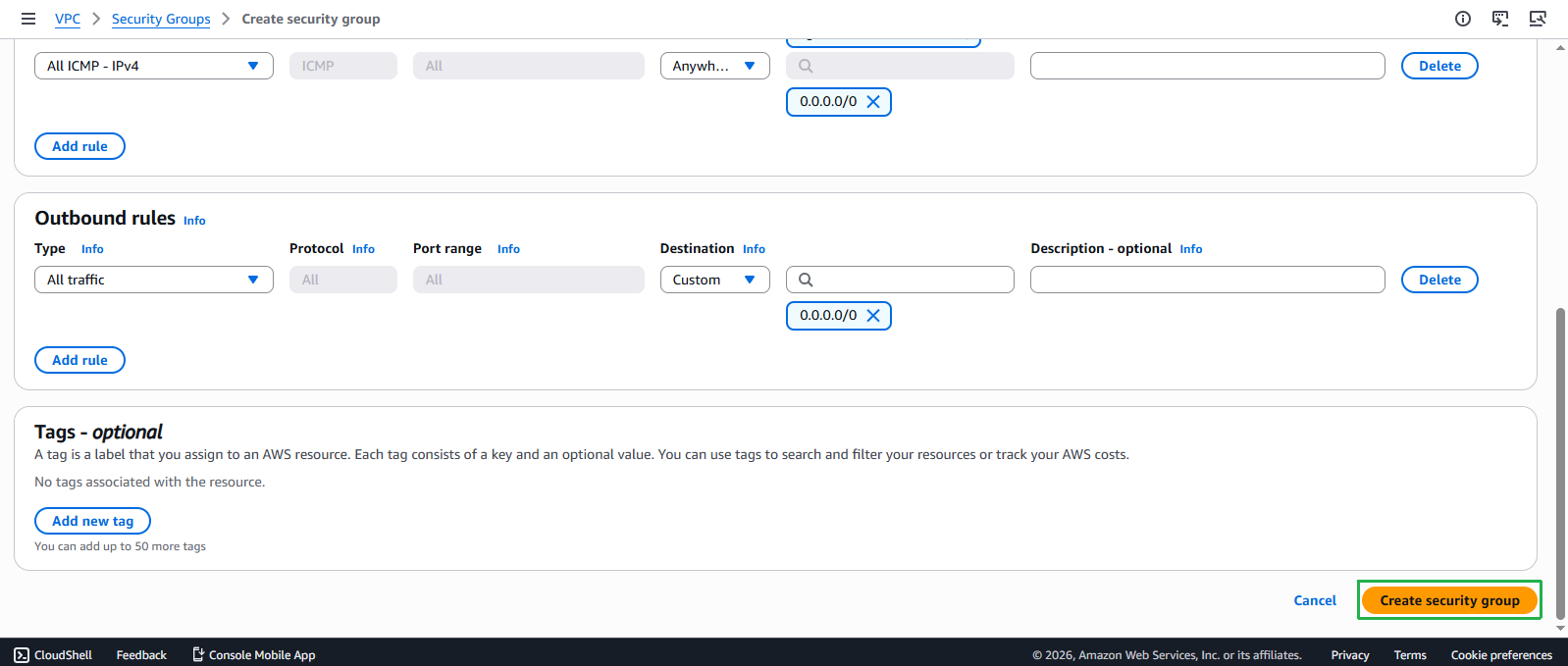
- Complete the security group creation:
- Review your settings
- Click Create security group
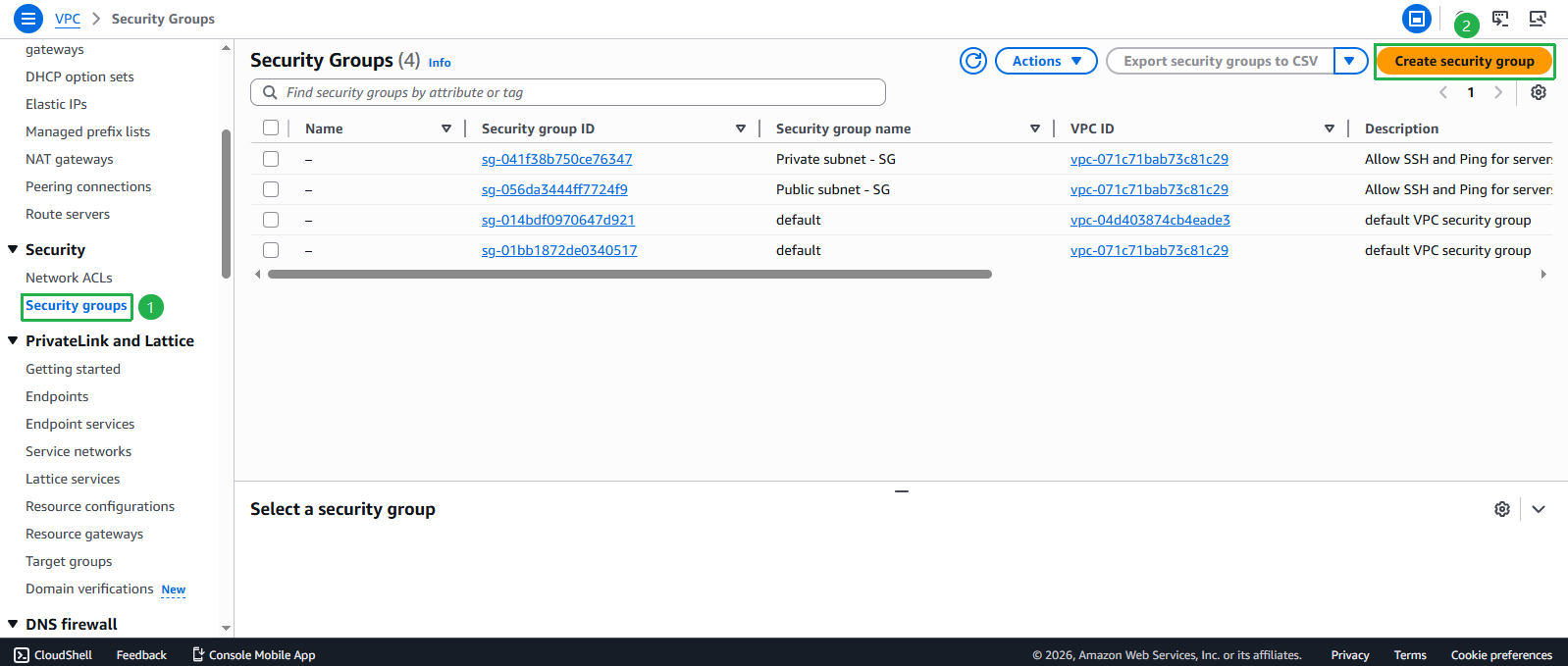
Configure Security Group for VPC Endpoints
- Create additional security group for VPC endpoints:
- Navigate back to Security Groups
- Click Create security group
- Security group name: Enter
VPC-Endpoints-SG - Description: Enter
Security group for VPC endpoints - VPC: Select the ASG VPC from the dropdown
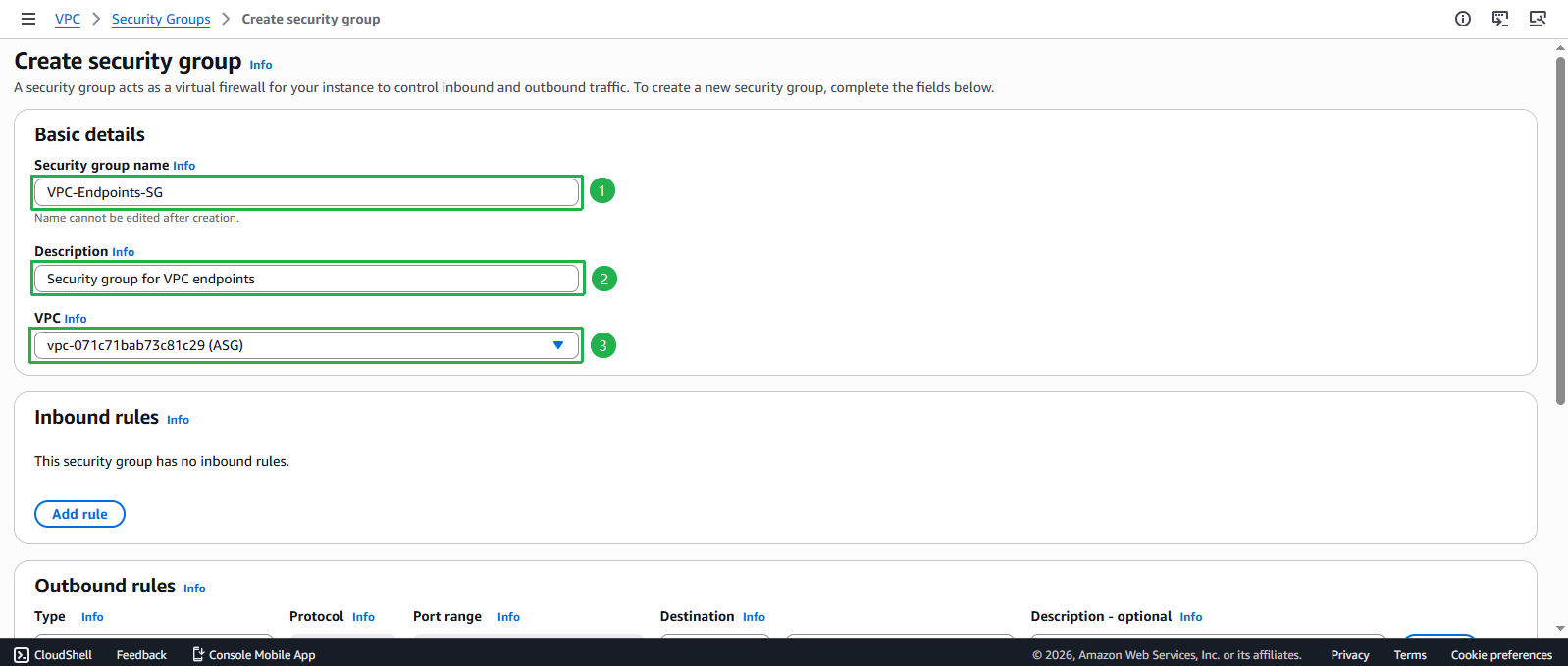
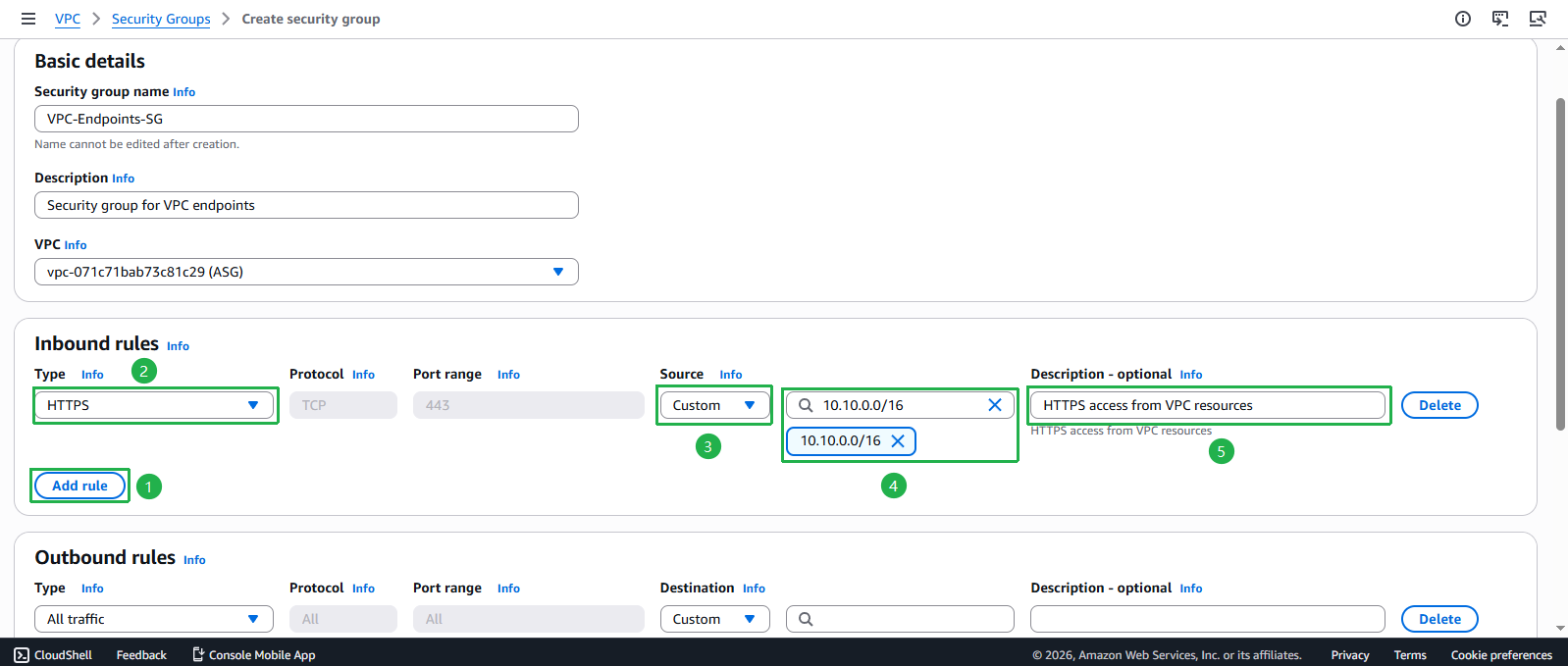
- Configure VPC Endpoints security group rules:
- Inbound rules:
- Click Add rule
- Type: Select HTTPS
- Source: Select Custom and enter 10.10.0.0/16 (VPC CIDR)
- Description: Enter
HTTPS access from VPC resources
- Inbound rules:
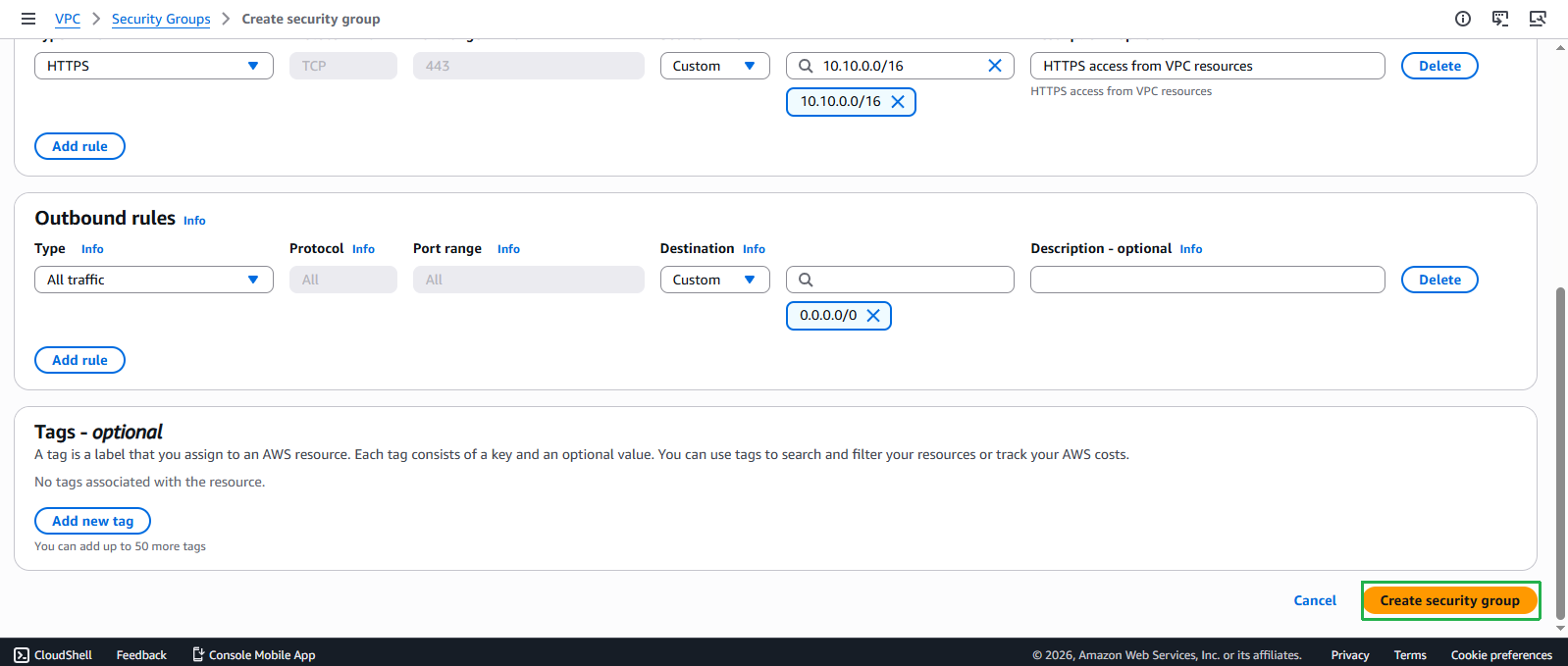
- Outbound rules: Keep default (All traffic allowed)
- Click Create security group
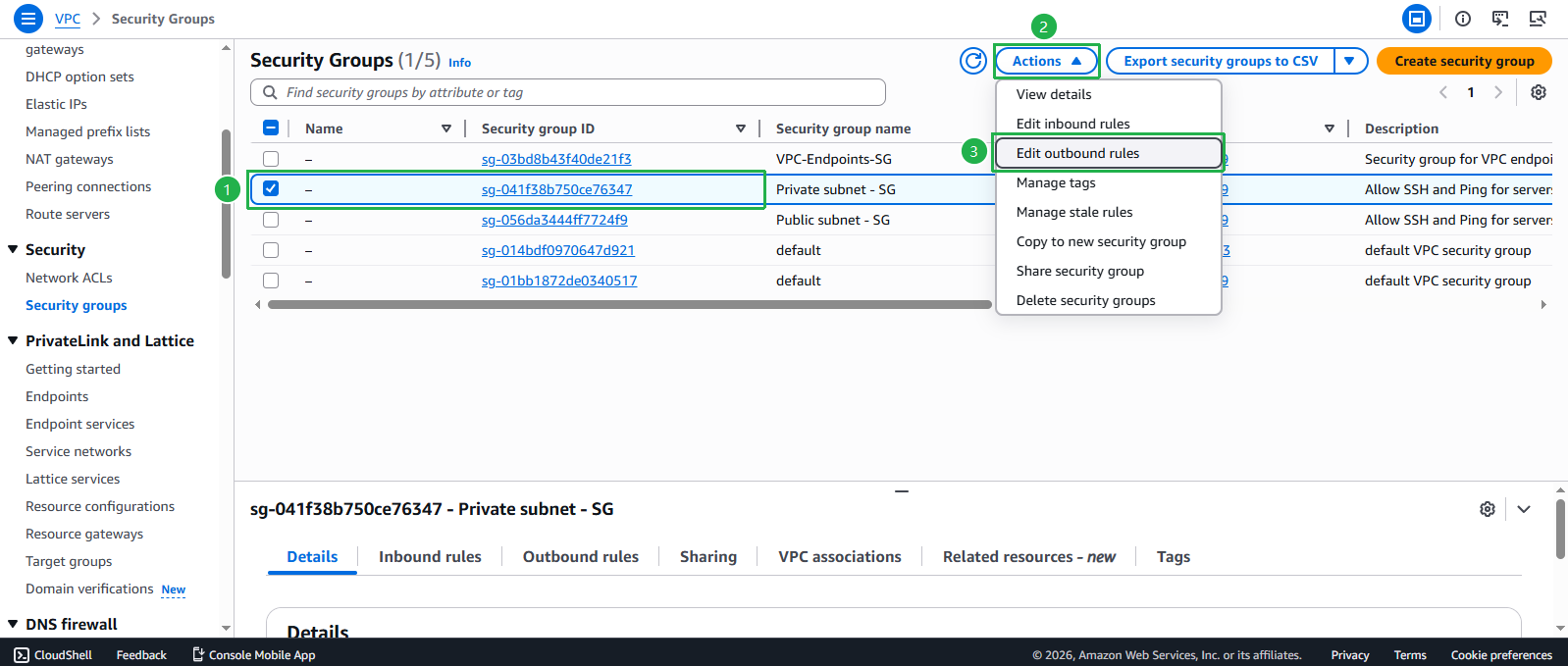
- Update Private Subnet Security Group for VPC endpoint access:
- Select Private subnet - SG
- Click Actions > Edit outbound rules
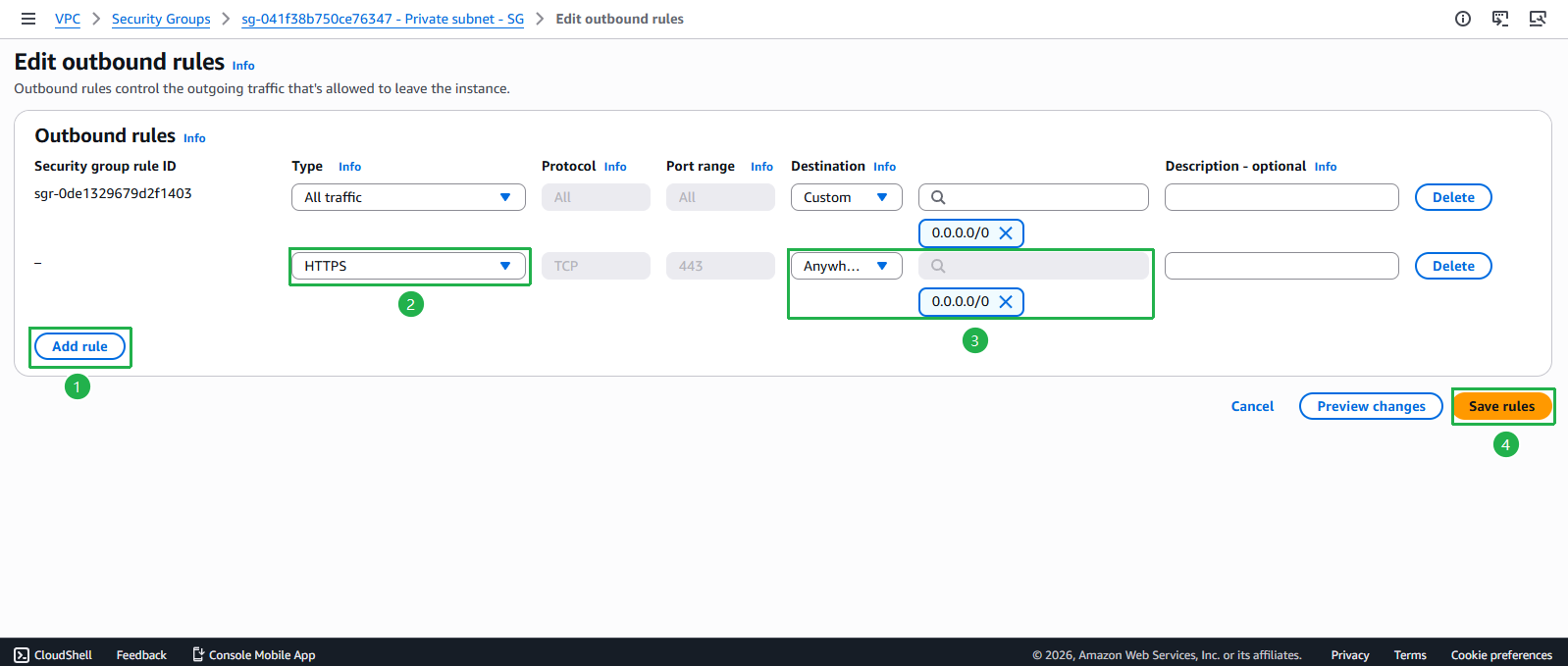
- Ensure the following outbound rule exists:
- Type: HTTPS
- Destination: 0.0.0.0/0
- Description:
HTTPS to AWS services and VPC endpoints
- Click Save rules
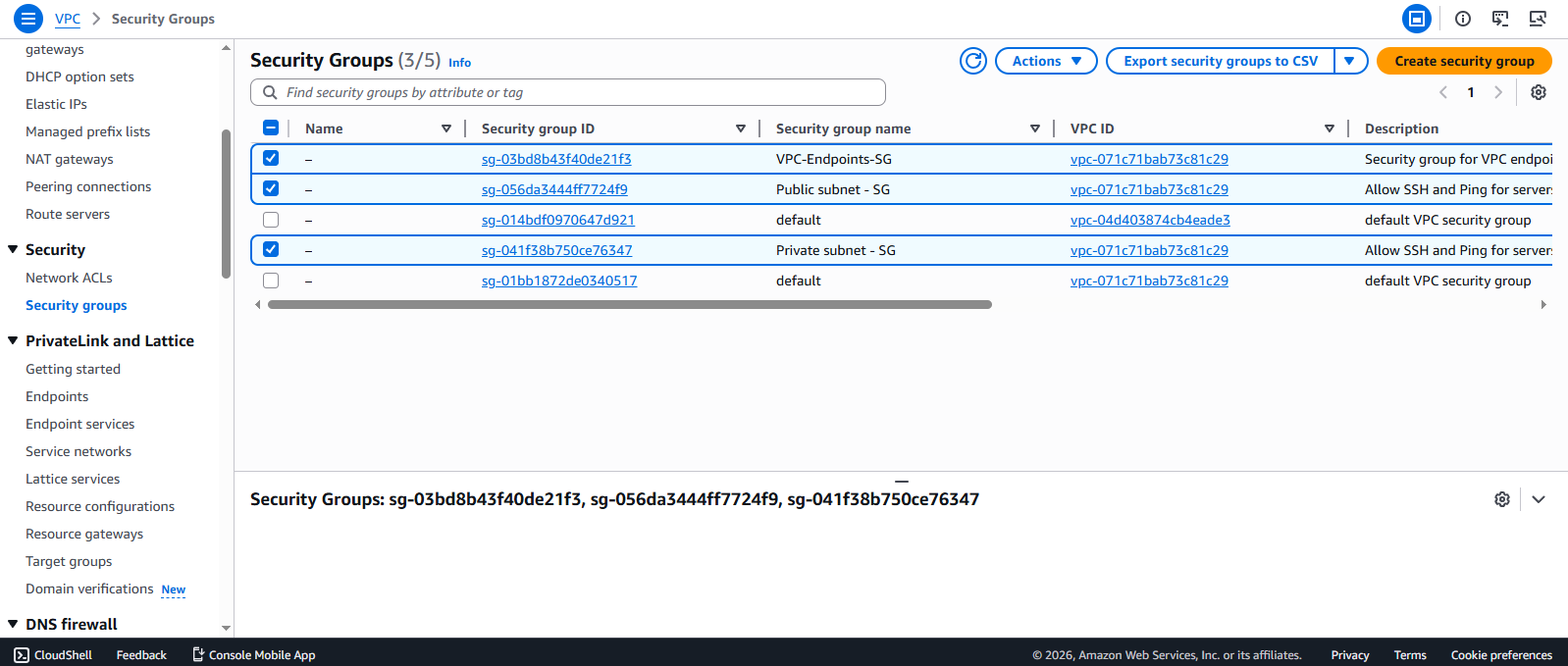
- Verify both security groups:
- Confirm all three security groups appear in your list:
- Public subnet - SG
- Private subnet - SG
- VPC-Endpoints-SG
- You now have dedicated security groups for public resources, private resources, and VPC endpoints
- Confirm all three security groups appear in your list:
🔒 Security Note
The principle of least privilege is implemented here by allowing SSH access to private instances only from public instances, creating a secure bastion host architecture. This significantly reduces the attack surface of your private resources.
💡 Pro Tip
When referencing security groups as sources in rules (as we did for the private subnet), you create a dynamic reference that works regardless of IP changes. This makes your security configuration more maintainable as your infrastructure evolves.
⚠️ Production Consideration
In production environments, consider removing ICMP rules entirely if ping functionality isn’t required for your applications. For troubleshooting, use AWS Systems Manager Session Manager or VPC Reachability Analyzer instead.