Using Reachability Analyzer
Using Reachability Analyzer
ℹ️ Overview
VPC Reachability Analyzer is a configuration analysis tool that helps you:
- Verify network connectivity between resources in your VPC
- Troubleshoot connectivity issues without sending actual packets
- Validate security group and network ACL configurations
- Analyze both forward and reverse paths
💡 Key Benefits:
- No packet sending: Static analysis of configuration
- Cost-effective: Pay only for analysis runs (~$0.10 per analysis)
- Fast results: Analysis completes in minutes
- Detailed insights: Shows exact path and potential blockers
🏗️ What We’ll Test: We’ll verify connectivity between EC2 Public and EC2 Private to ensure our VPC configuration is correct.
Create Reachability Analysis
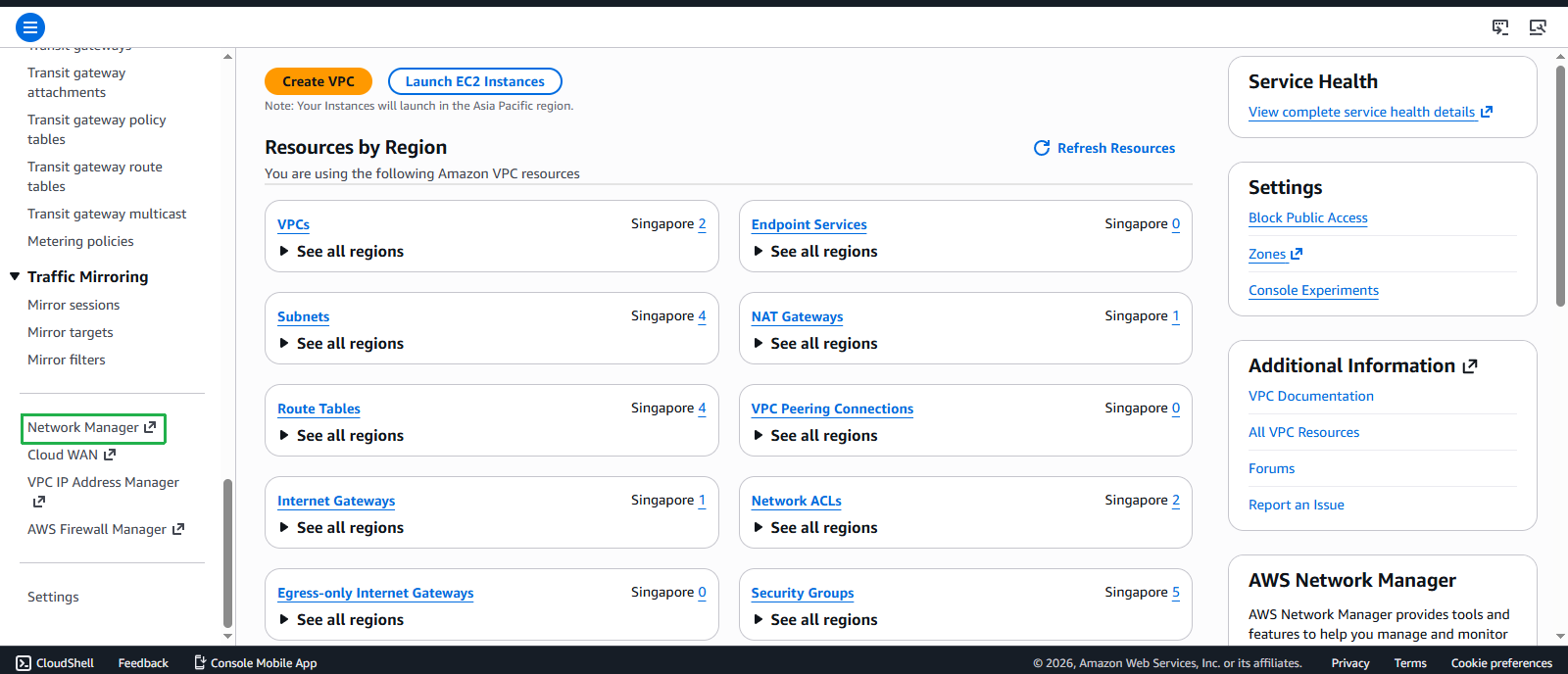
Access the VPC interface
- Navigate to Network Manager in the left sidebar
- Select Reachability Analyzer
- Click Create and analyze path
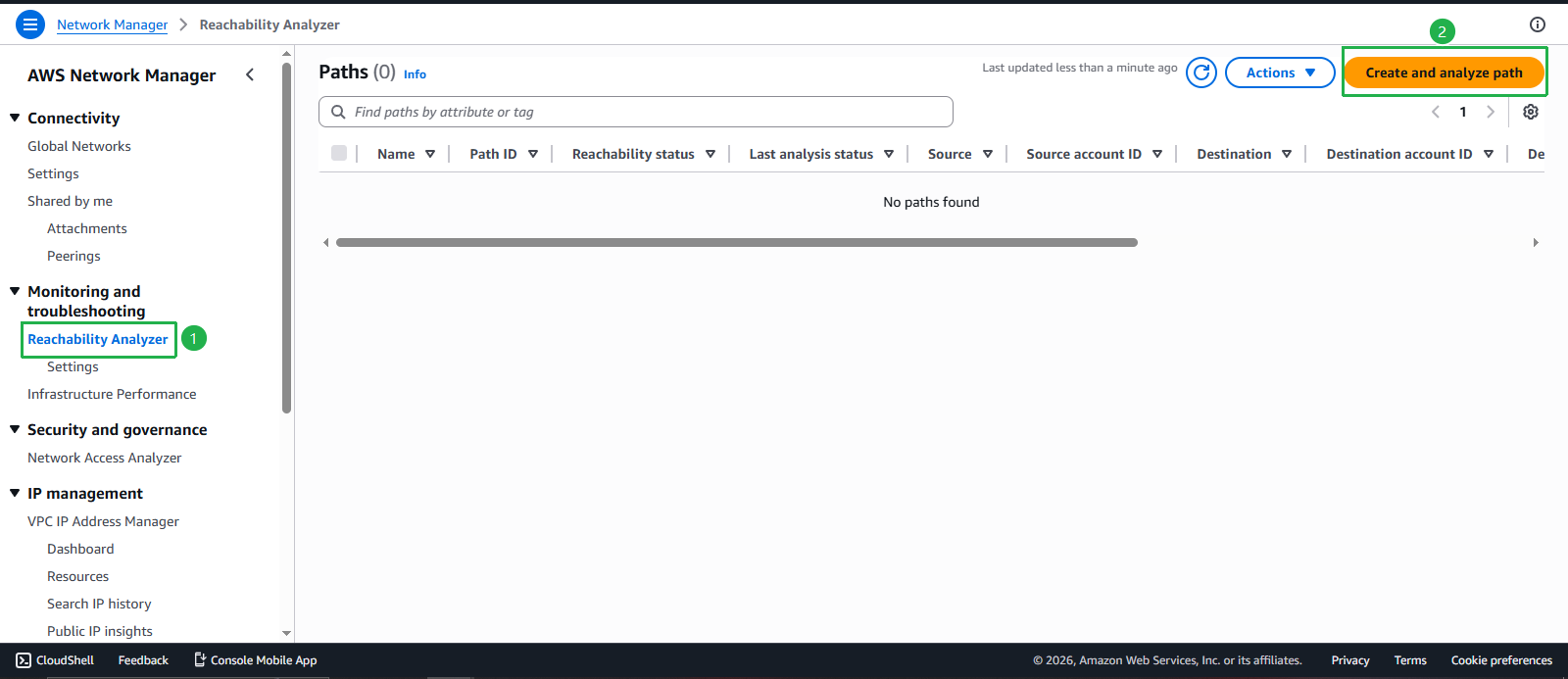
Configure Path Analysis
Source Configuration:
- Name tag: Enter
EC2 Public to EC2 Private - Source type: Select Instances
- Source: Select EC2 Public
💡 Tip: The source is where the connection originates (in this case, EC2 Public).
- Name tag: Enter
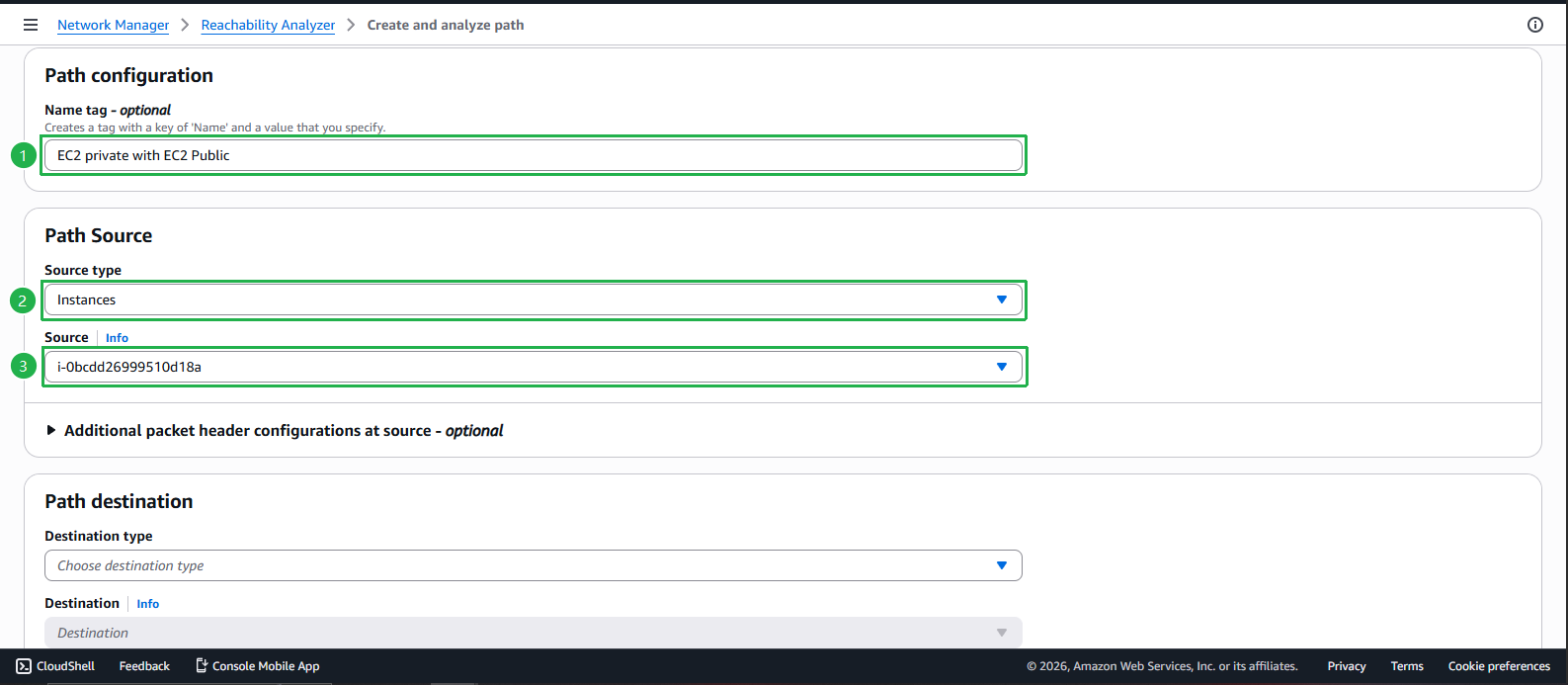
Destination Configuration:
- Destination type: Select Instances
- Destination: Select EC2 Private
- Destination port: Leave default (analyzes all ports)
- Protocol: Leave default (TCP)
Review and Create
- Leave remaining parameters at default values
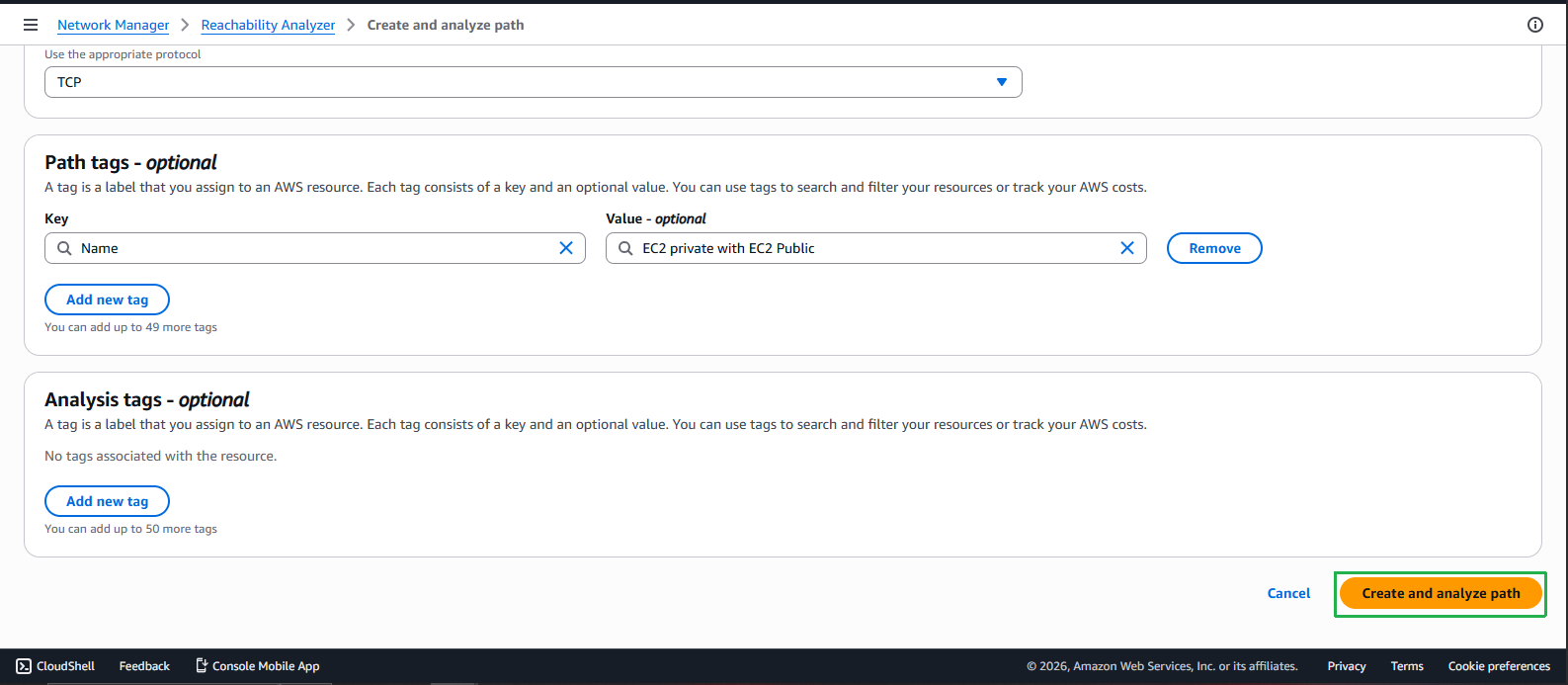
- Click Create and analyze path
⏱️ Analysis Time: The analysis typically takes 1-5 minutes to complete.
Review Analysis Results
Check Analysis Status
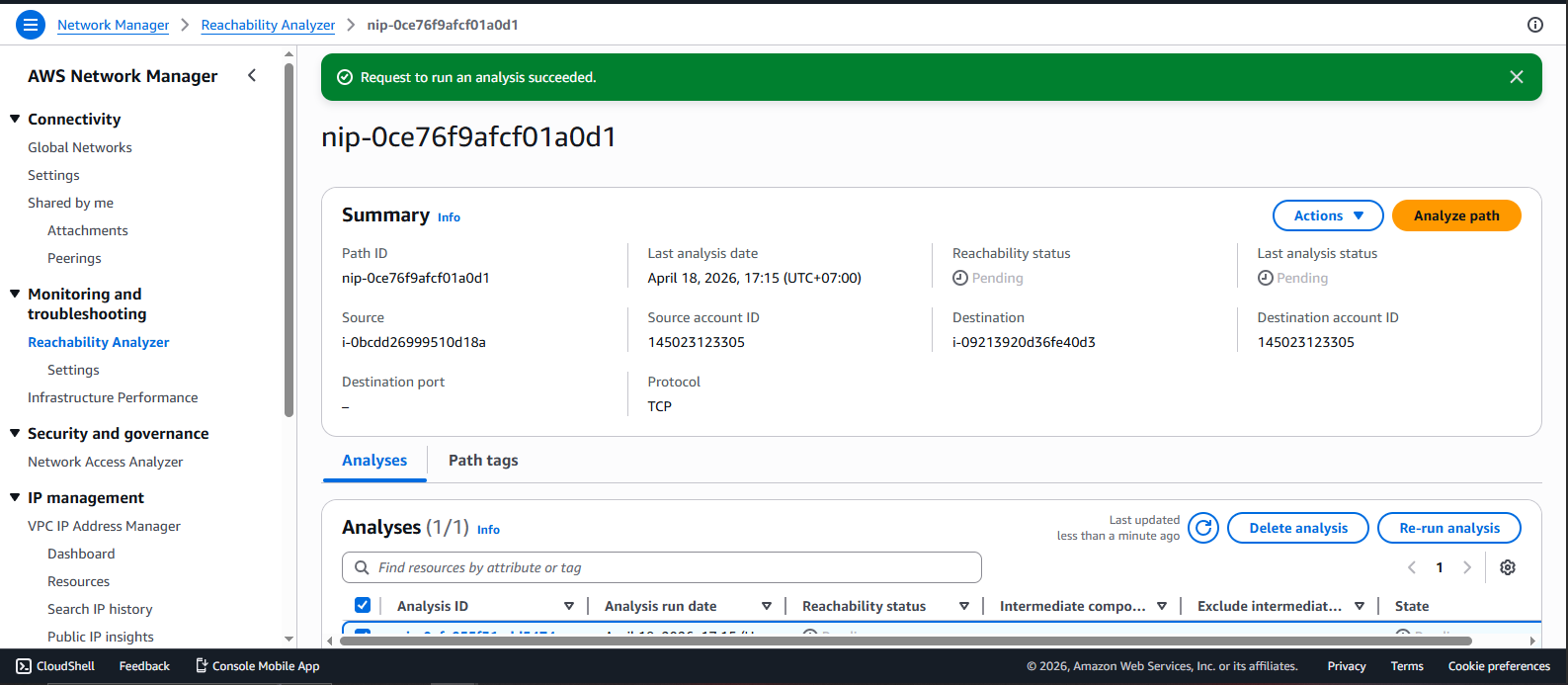
- Wait for the status to change to Reachable
- Reachable means connectivity is possible based on current configuration
- Not reachable would indicate a configuration issue
✅ Expected Result: Status should be Reachable since we configured security groups to allow traffic between the instances.
View Analysis Summary
- Click on the analysis to see detailed results
- Review the summary information
Analyze Network Path Details
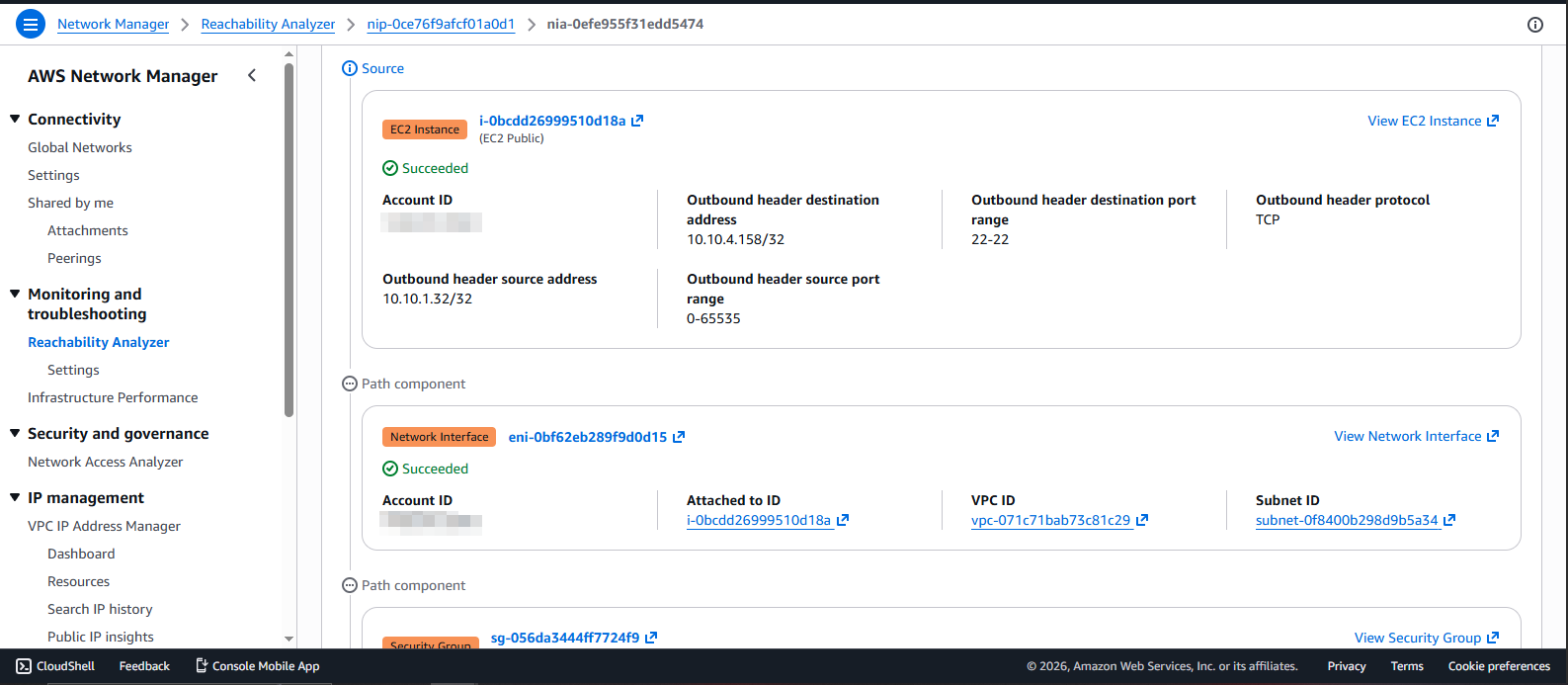
View Forward Path Details
- Click Path details tab
- Review the network components in the path:
- Source: EC2 Public instance
- Source ENI: Network interface of EC2 Public
- Source Security Group: Rules allowing outbound traffic
- Destination Security Group: Rules allowing inbound traffic
- Destination ENI: Network interface of EC2 Private
- Destination: EC2 Private instance
💡 Understanding the Path:
EC2 Public → ENI → Security Group (outbound) →
VPC Routing → Security Group (inbound) → ENI → EC2 Private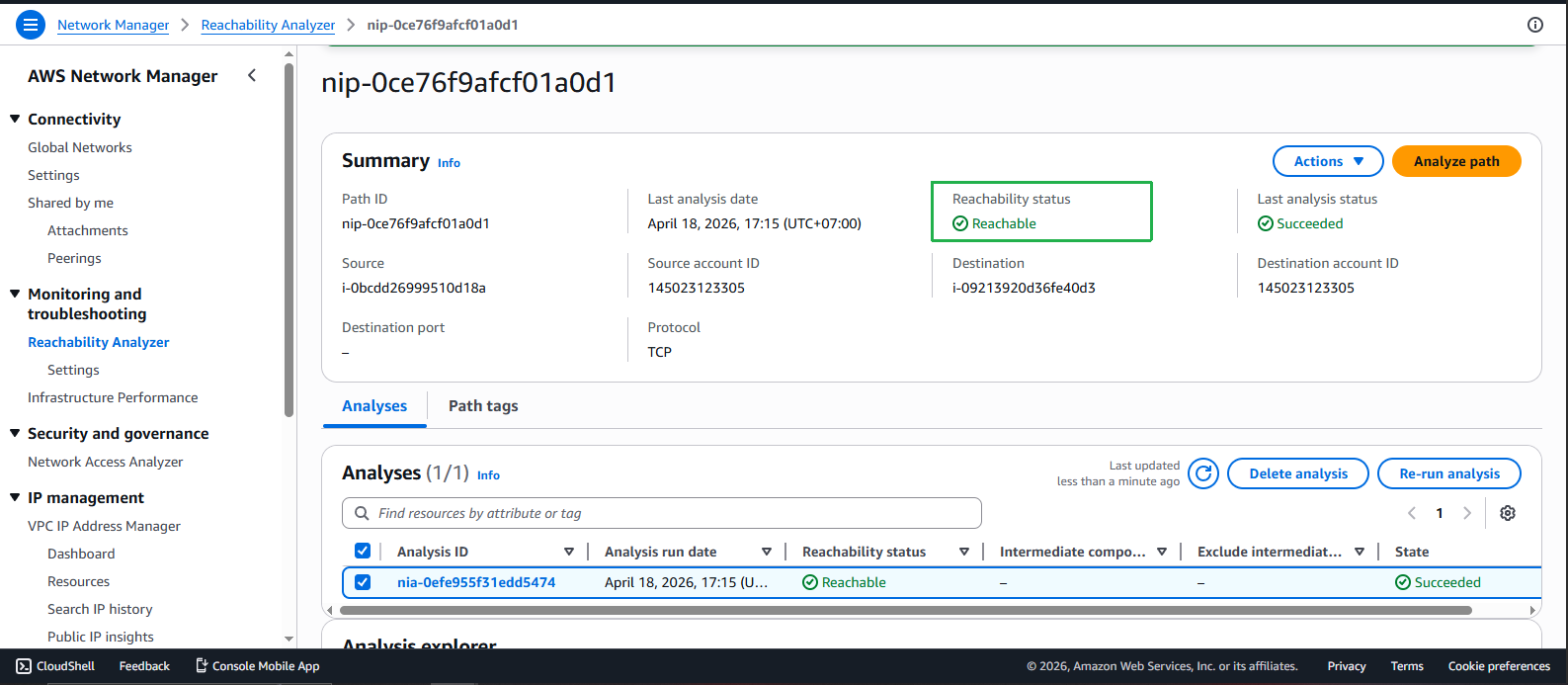
Analyze Reverse Path
- Click Reverse path details tab
- Verify that return traffic can flow from EC2 Private back to EC2 Public
- This confirms bidirectional connectivity
🔒 Security Note: Both forward and reverse paths must be open for successful two-way communication.
Understanding the Results
💡 What Reachability Analyzer Checks:
- ✅ Security group rules (inbound and outbound)
- ✅ Network ACL rules
- ✅ Route table configurations
- ✅ Internet Gateway and NAT Gateway settings
- ✅ VPC peering and Transit Gateway routes
- ✅ Network interface configurations
⚠️ What It Doesn’t Check:
- ❌ Instance-level firewalls (iptables, Windows Firewall)
- ❌ Application-level issues
- ❌ DNS resolution problems
- ❌ Actual network performance
🏗️ Use Cases:
- Pre-deployment validation: Verify connectivity before launching applications
- Troubleshooting: Identify why connections are failing
- Security audits: Verify that only intended paths are open
- Change validation: Confirm that security group changes work as expected
💰 Cost Considerations:
- Per analysis: ~$0.10 per path analysis
- No ongoing charges: Pay only when you run analyses
- Cost-effective troubleshooting: Cheaper than trial-and-error debugging
💡 Best Practices:
- Run analysis after major network configuration changes
- Test both forward and reverse paths
- Document analysis results for compliance
- Use descriptive names for analyses
- Delete old analyses to keep the console clean
✅ Completed: You’ve successfully used VPC Reachability Analyzer to verify connectivity between EC2 Public and EC2 Private instances!