Enable VPC Flow Logs
Enabling VPC Flow Logs for Security Monitoring
ℹ️ What are VPC Flow Logs?
VPC Flow Logs capture information about the IP traffic going to and from network interfaces in your VPC. This data is essential for security monitoring, network troubleshooting, and compliance auditing.
Step-by-Step VPC Flow Logs Configuration
- Access the VPC Flow Logs interface:
- Navigate to the VPC console
- Select Your VPCs from the left navigation panel
- Select your ASG VPC
- Click the Flow logs tab
- Click Create flow log
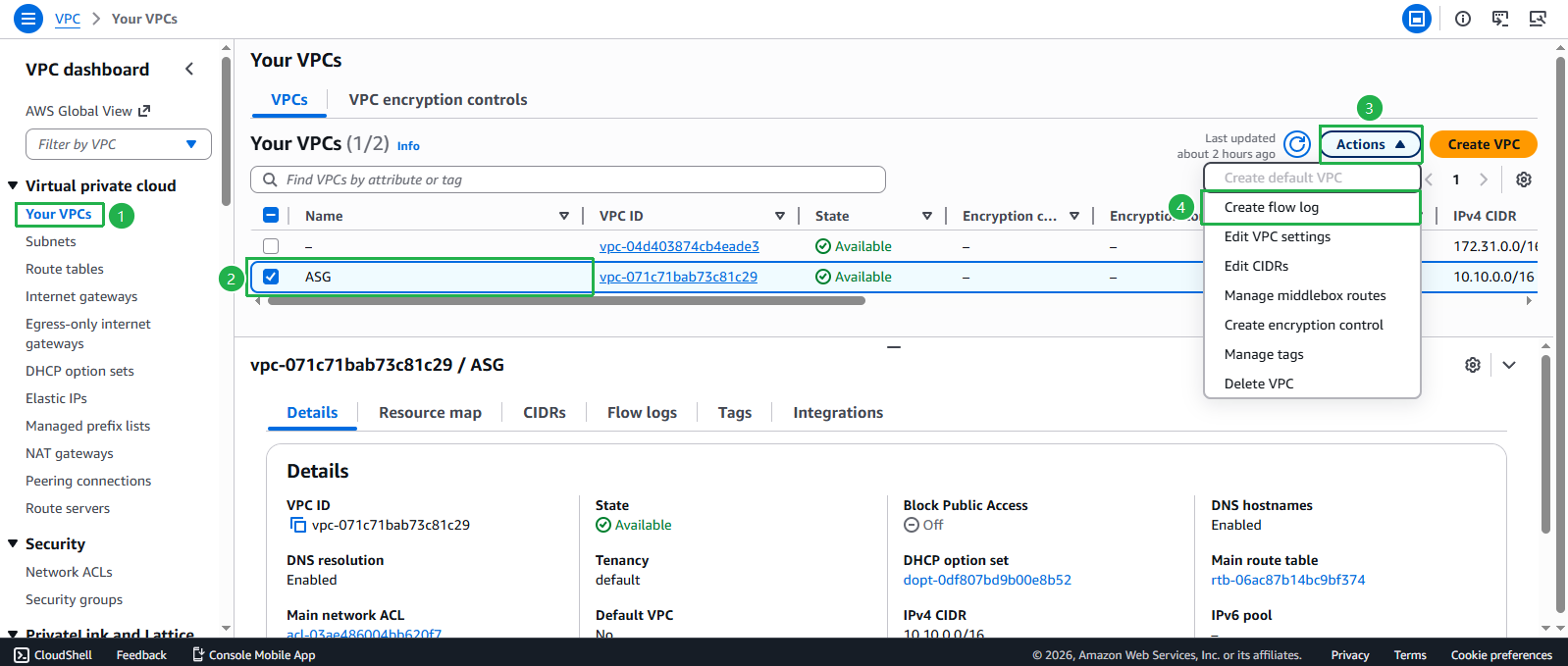
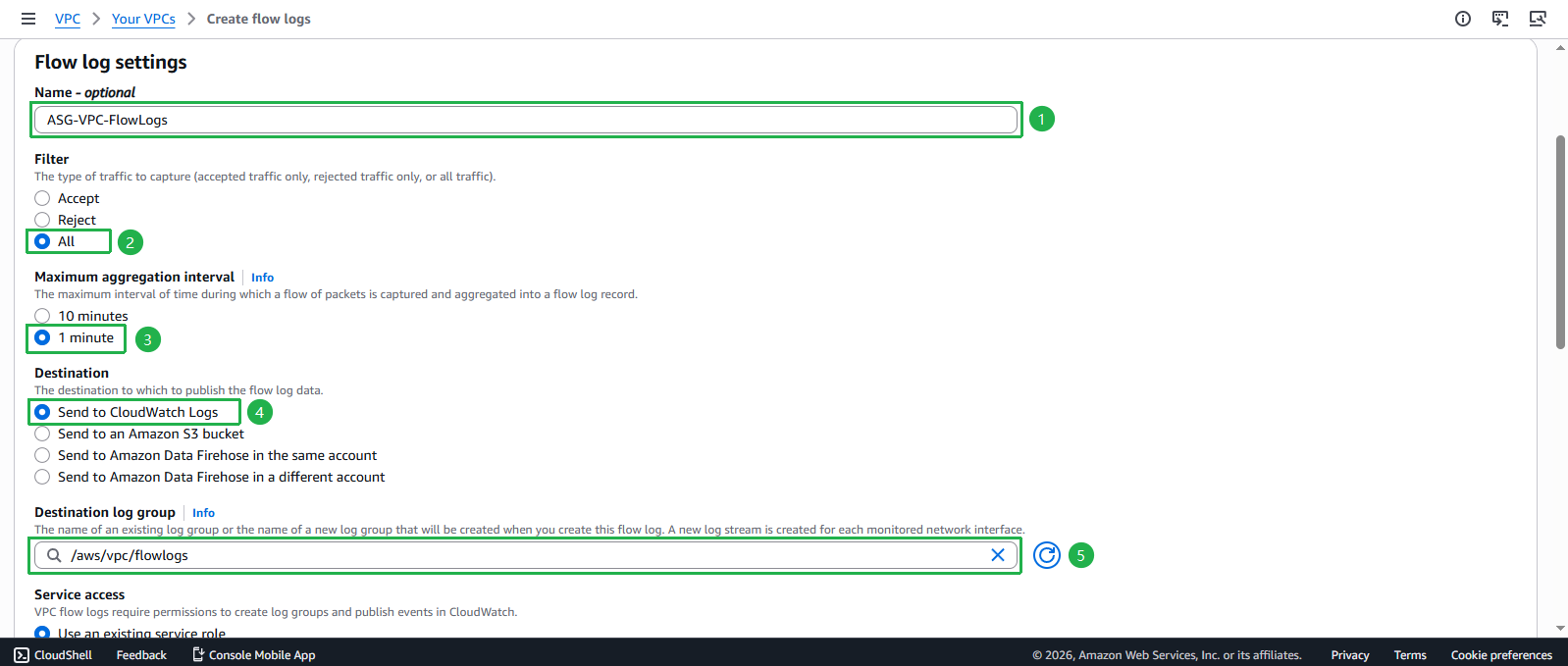
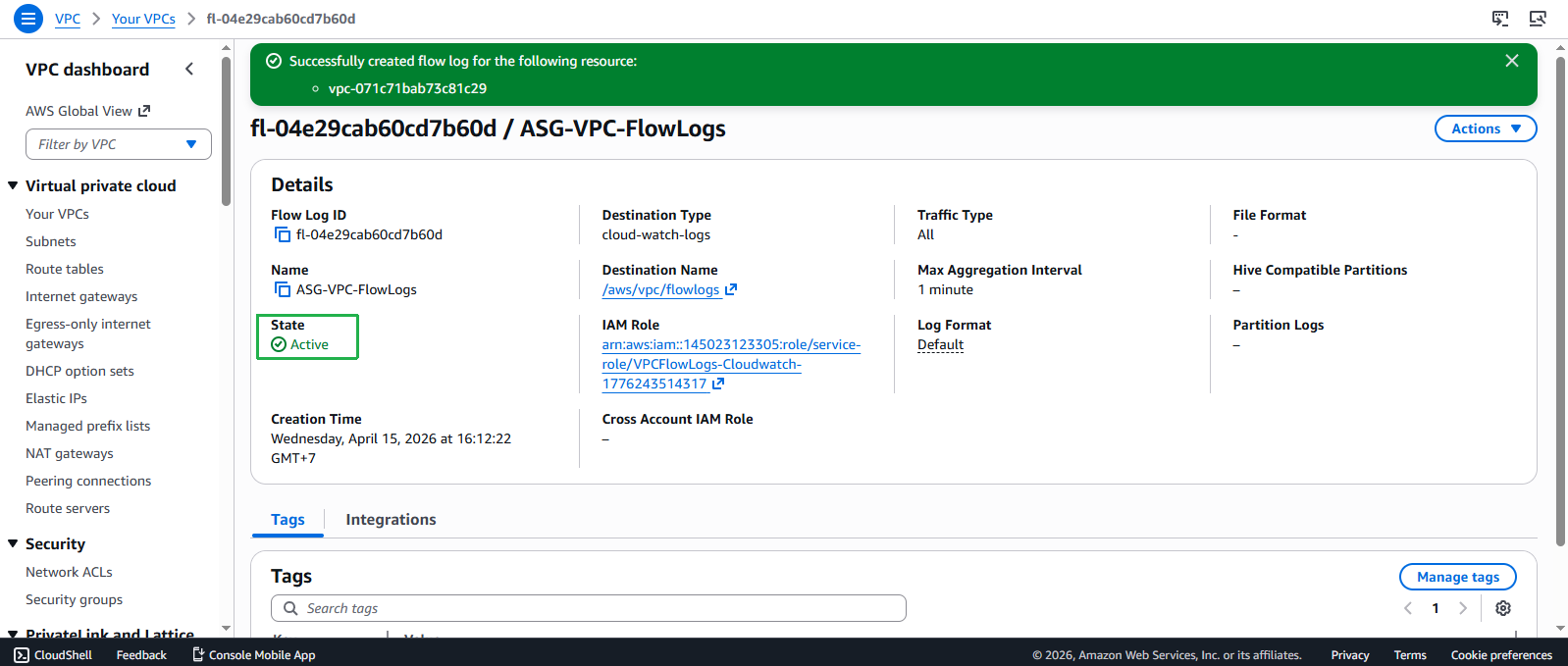
- Configure Flow Log settings:
- Filter: Select All (captures accepted, rejected, and all traffic)
- Maximum aggregation interval: Select 1 minute (for detailed monitoring)
- Destination: Select Send to CloudWatch Logs
- Destination log group: Enter
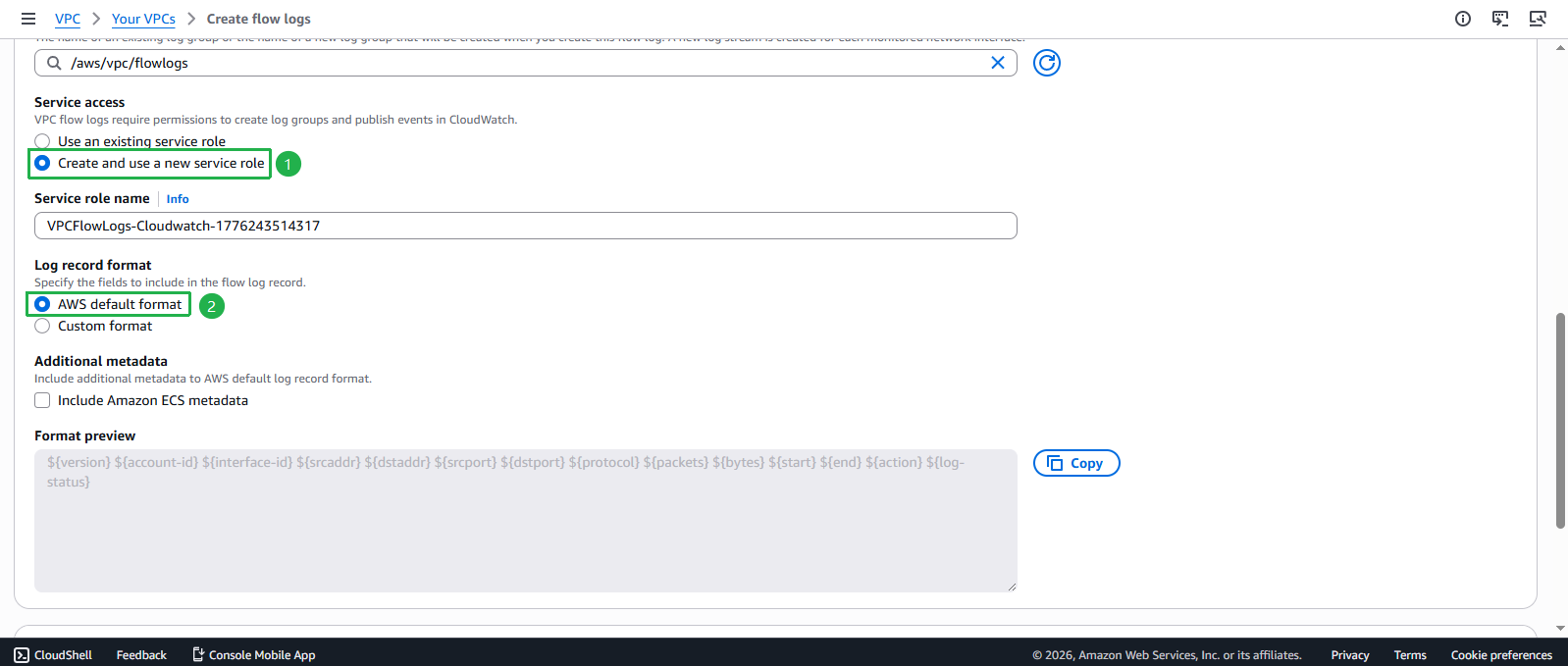
/aws/vpc/flowlogs - IAM role: Select Create a new role (AWS will create the necessary permissions)
- Configure log format (Optional - Advanced):
- Log format: Keep AWS default format for this workshop
- For production environments, you can customize the format to include additional fields
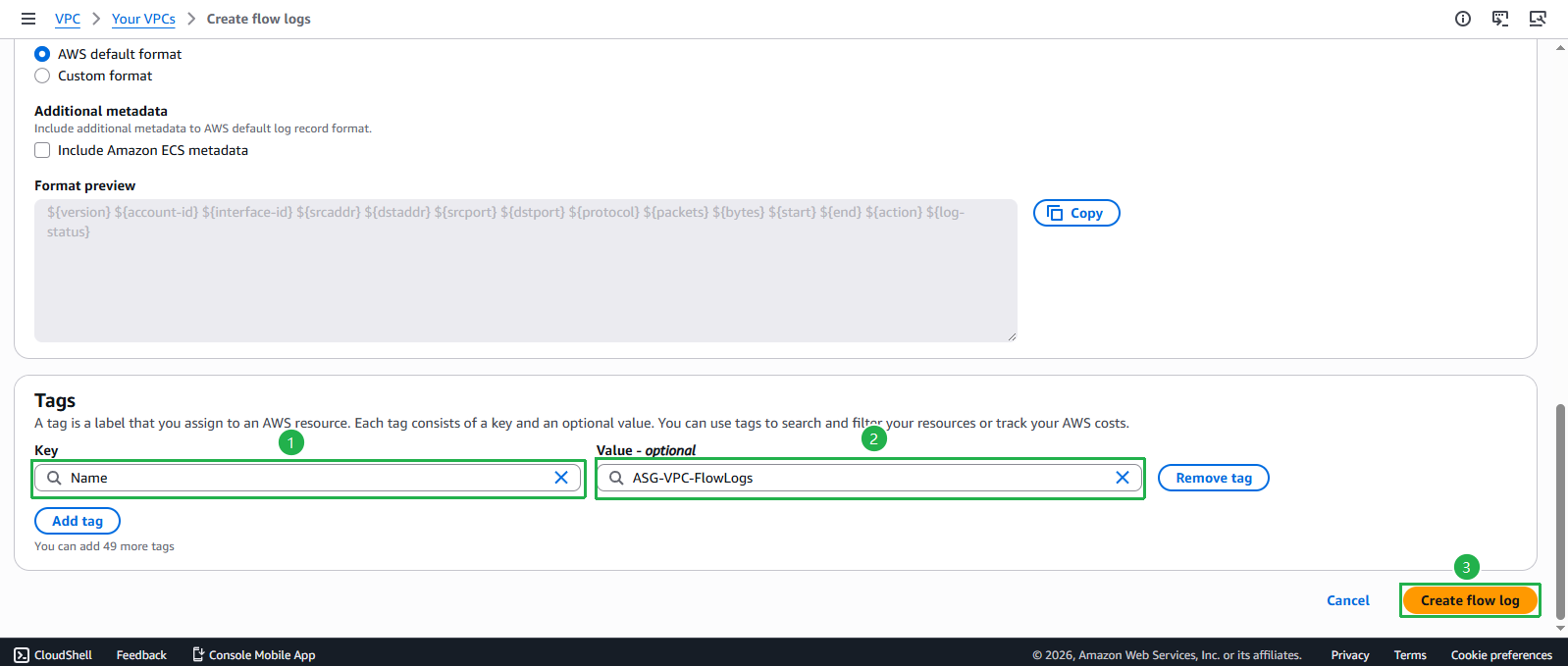
- Add tags for resource management:
- Key: Name
- Value: ASG-VPC-FlowLogs
- Click Create flow log
- Verify Flow Log creation:
- You should see a success message
- The Flow Log will appear in the Flow logs tab with status Active
Understanding Flow Log Data
🔍 Flow Log Record Format
Each flow log record contains the following key information:
- srcaddr, dstaddr: Source and destination IP addresses
- srcport, dstport: Source and destination ports
- protocol: Protocol number (6=TCP, 17=UDP, 1=ICMP)
- action: ACCEPT or REJECT
- bytes, packets: Traffic volume metrics
💡 Security Monitoring Use Cases
VPC Flow Logs enable you to:
- Detect unusual traffic patterns
- Identify security group misconfigurations
- Monitor data exfiltration attempts
- Troubleshoot connectivity issues
- Meet compliance requirements
Accessing Flow Log Data
- View Flow Logs in CloudWatch:
- Navigate to CloudWatch console
- Select Log groups from the left navigation
- Find and select
/aws/vpc/flowlogs - Click on a log stream to view the actual flow data
🔒 Security Best Practice
Enable Flow Logs on all production VPCs and set up CloudWatch alarms for suspicious activities such as:
- High volume of rejected connections
- Unusual outbound traffic patterns
- Connections to known malicious IP addresses
💰 Cost Consideration
VPC Flow Logs incur charges for CloudWatch Logs storage and data ingestion. For cost optimization:
- Use sampling (capture 1 in N packets) for high-traffic environments
- Set appropriate log retention periods
- Consider sending logs to S3 for long-term storage at lower cost
⚠️ Important Notes
- Flow Logs do not capture real-time data; there’s typically a few minutes delay
- Flow Logs do not capture traffic to/from Amazon DNS servers
- Metadata queries to instance metadata service (169.254.169.254) are not captured