CloudWatch Monitoring & Alerting
Implementing CloudWatch Monitoring for VPC Resources
ℹ️ What is CloudWatch Monitoring?
Amazon CloudWatch provides monitoring and observability for your AWS resources. For VPC environments, CloudWatch helps you track network performance, security events, and resource utilization to ensure optimal operation.
Key Metrics to Monitor
🔍 VPC-Related Metrics:
- NAT Gateway: Bandwidth utilization, packet drop count, connection attempts
- VPN Connections: Tunnel state, data transfer metrics
- EC2 Instances: Network performance, CPU, memory utilization
- VPC Flow Logs: Security events, traffic patterns
Setting Up NAT Gateway Monitoring
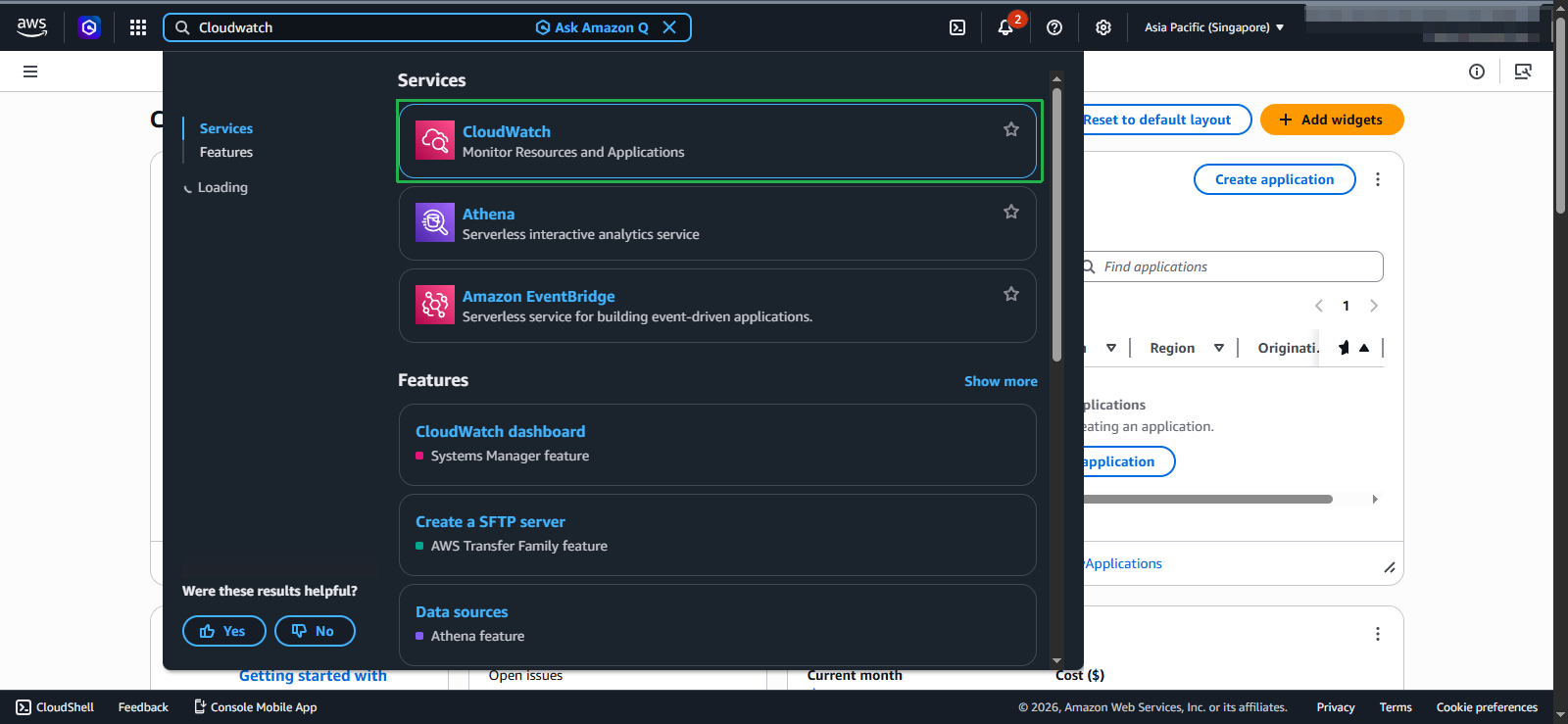
- Access CloudWatch console:
- Navigate to CloudWatch console
- Select Metrics from the left navigation
- Click All metrics
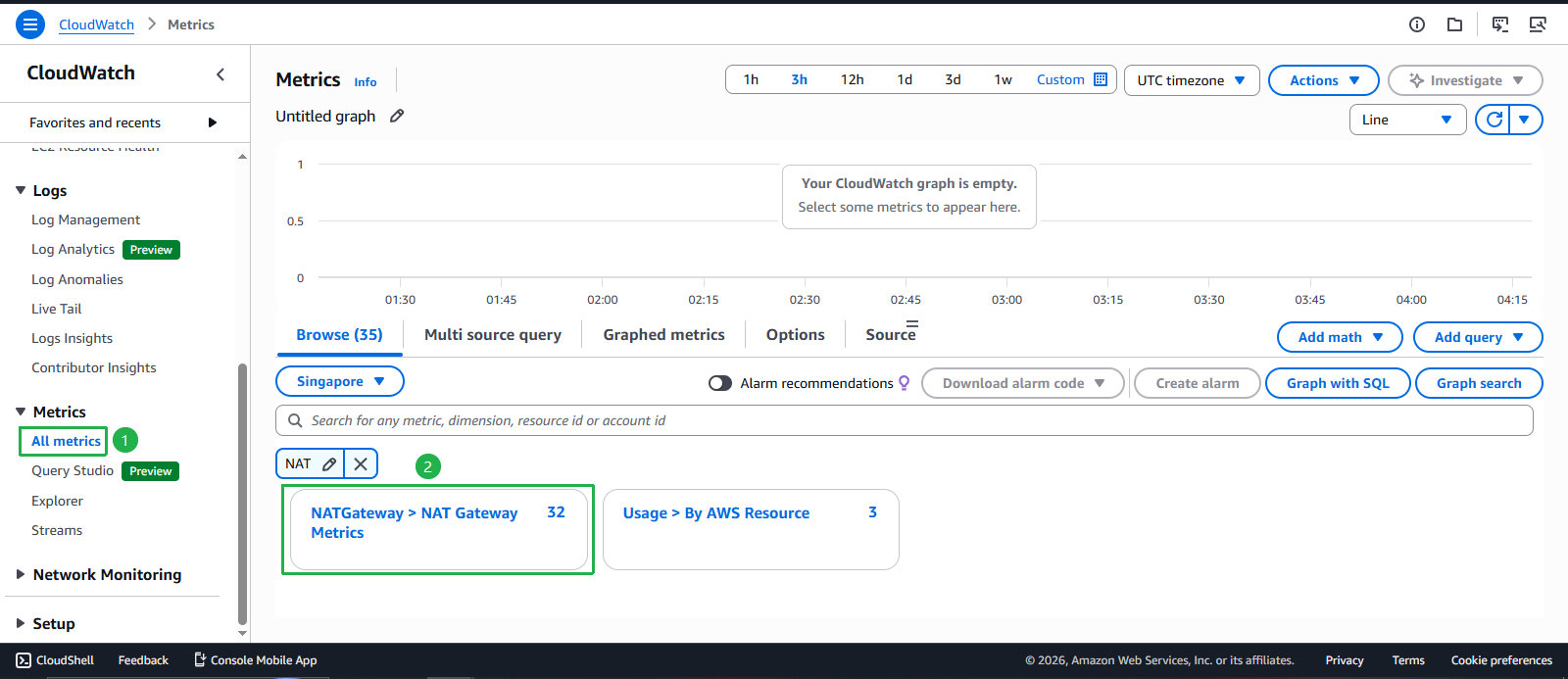
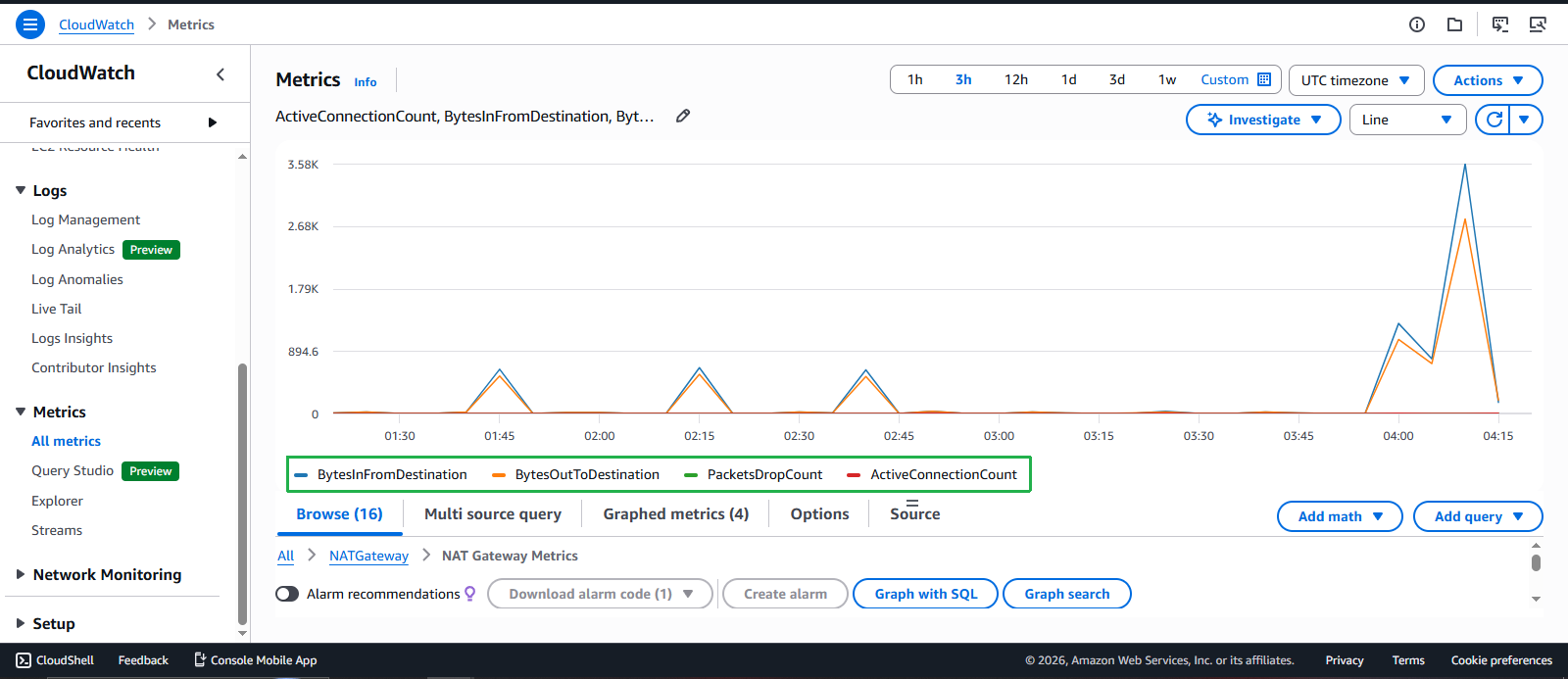
- Browse NAT Gateway metrics:
- Click AWS/NATGateway
- Select Per-NAT Gateway Metrics
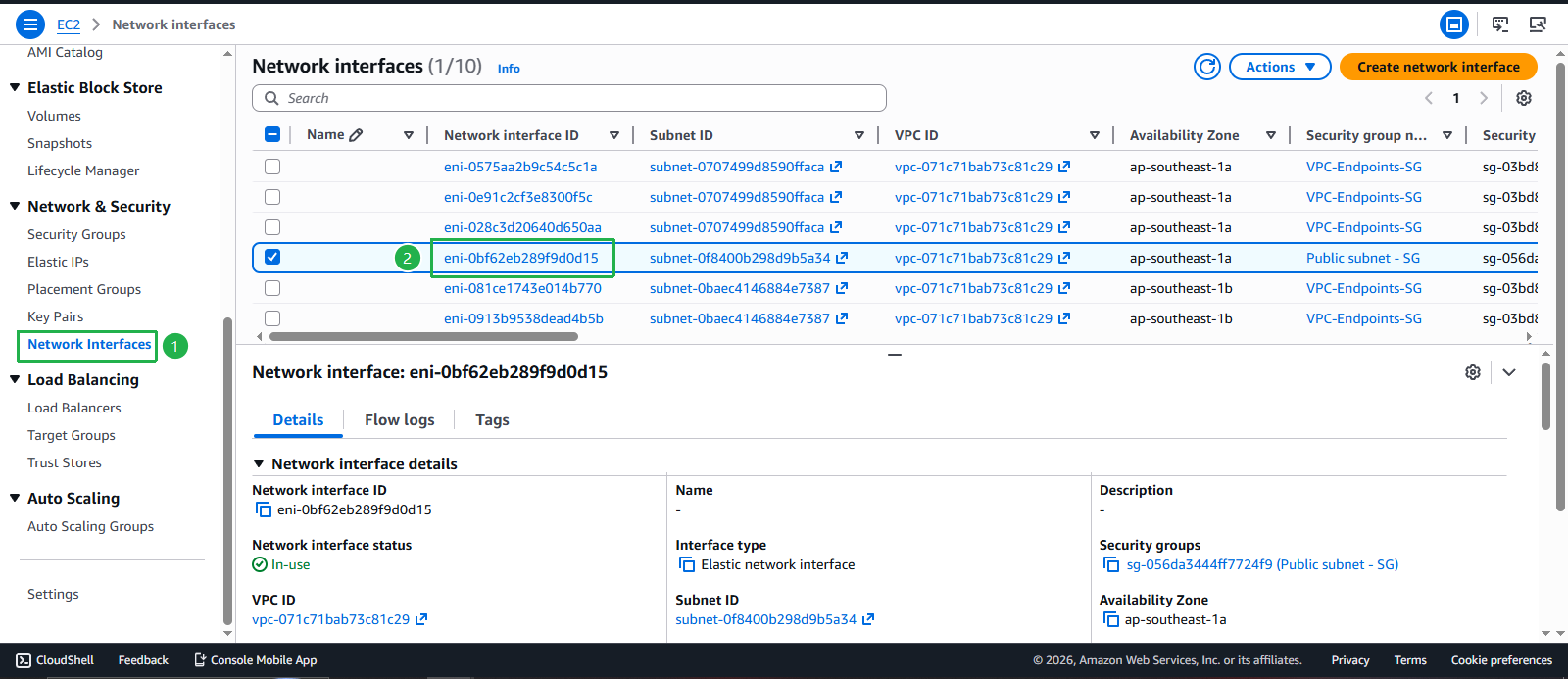
- Choose your NAT Gateway IDs
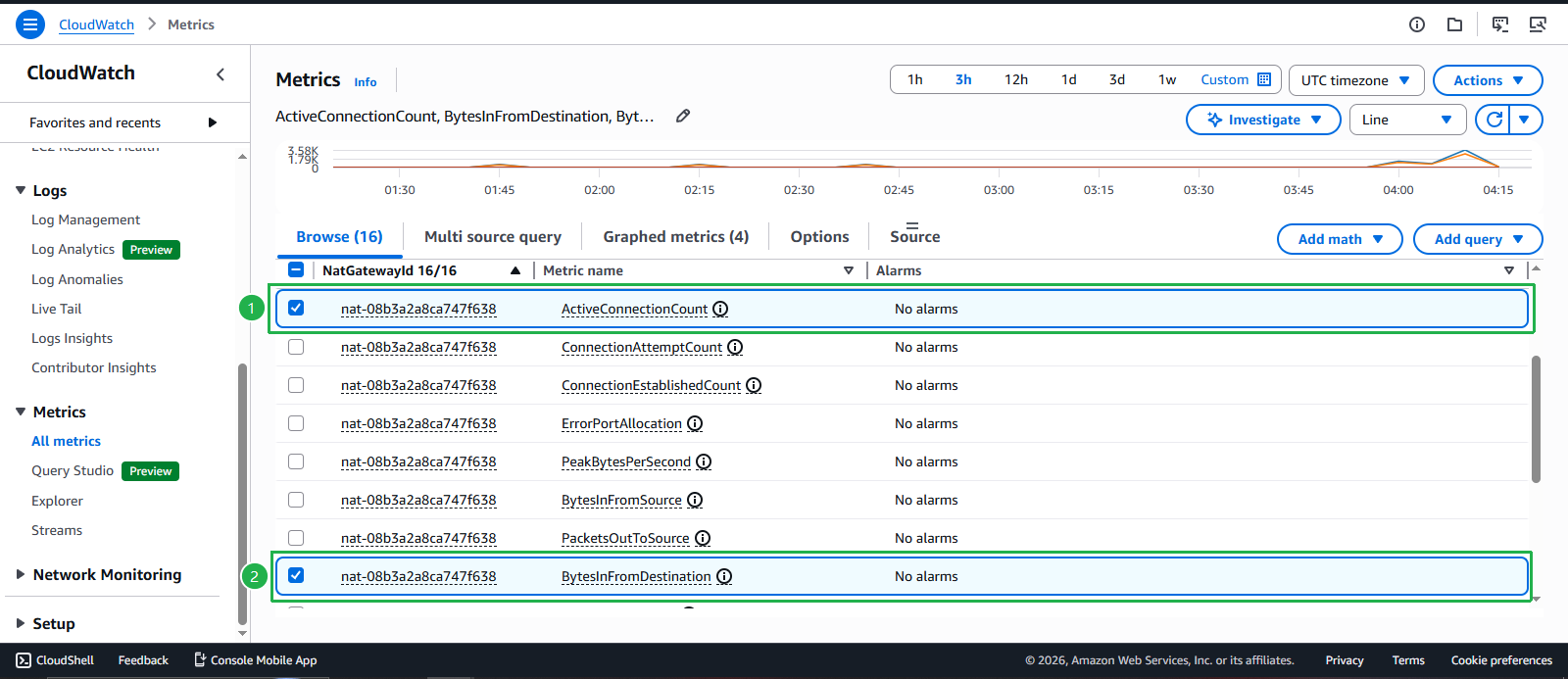
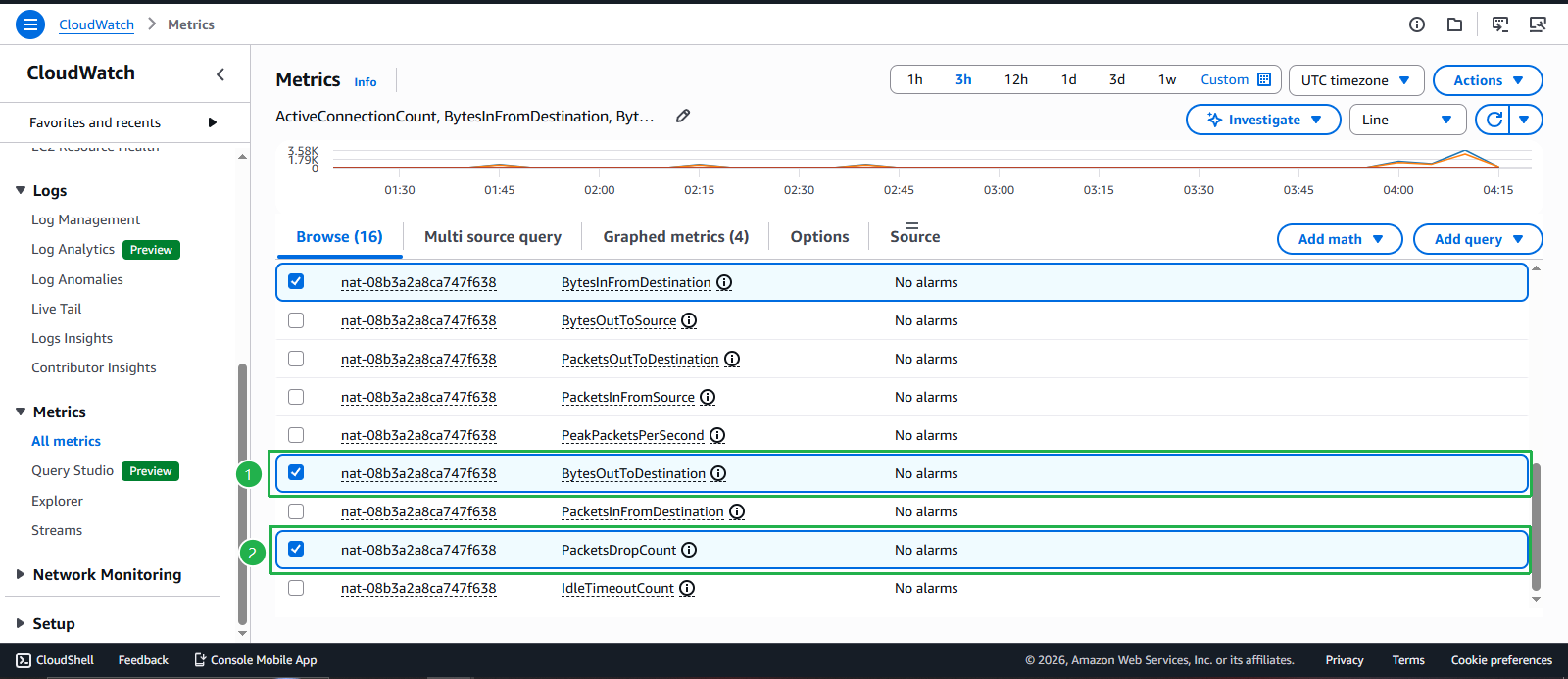
- Key NAT Gateway metrics to monitor:
- BytesInFromDestination: Data received from destination
- BytesOutToDestination: Data sent to destination
- PacketDropCount: Packets dropped by NAT Gateway
- ActiveConnectionCount: Active connections through NAT Gateway
Creating CloudWatch Alarms
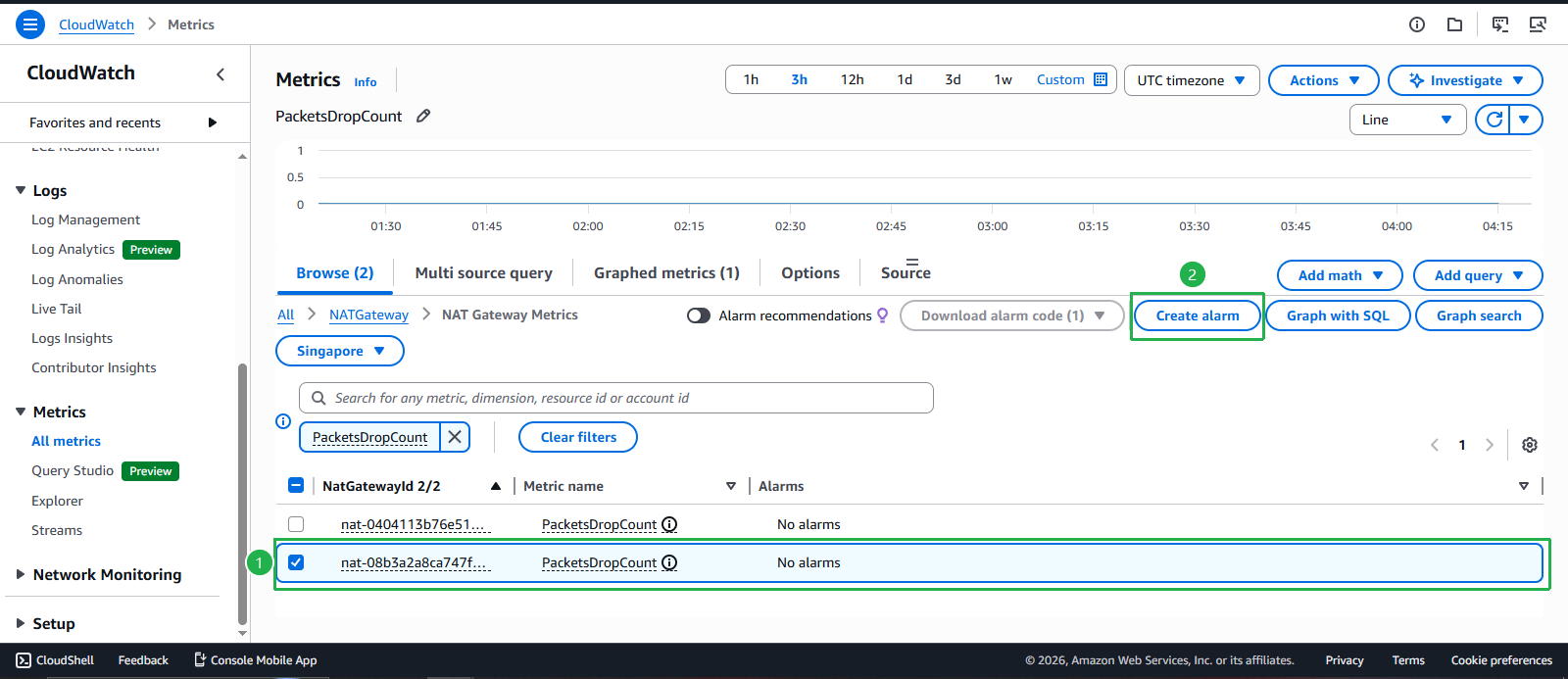
- Create alarm for NAT Gateway packet drops:
- Select PacketDropCount metric
- Click Create alarm
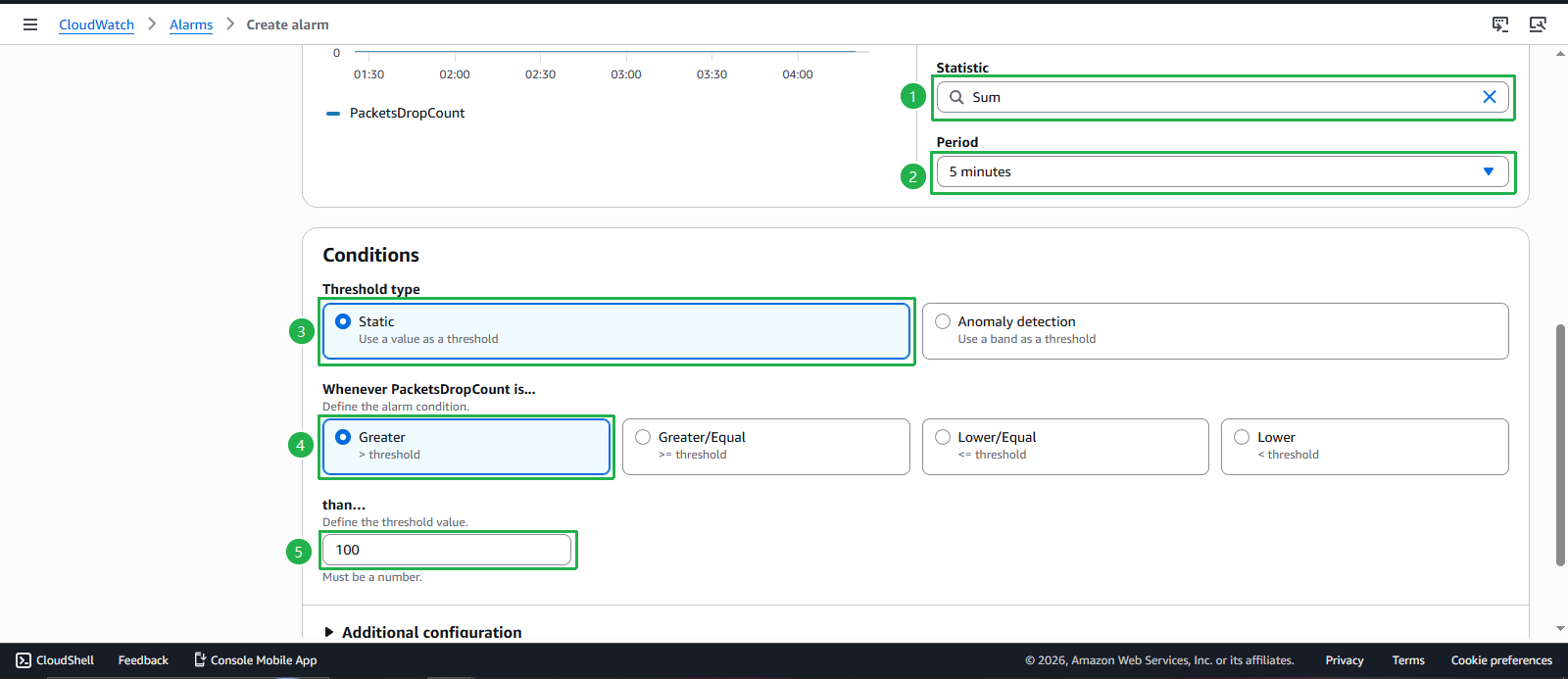
- Configure alarm conditions:
- Statistic: Select Sum
- Period: Select 5 minutes
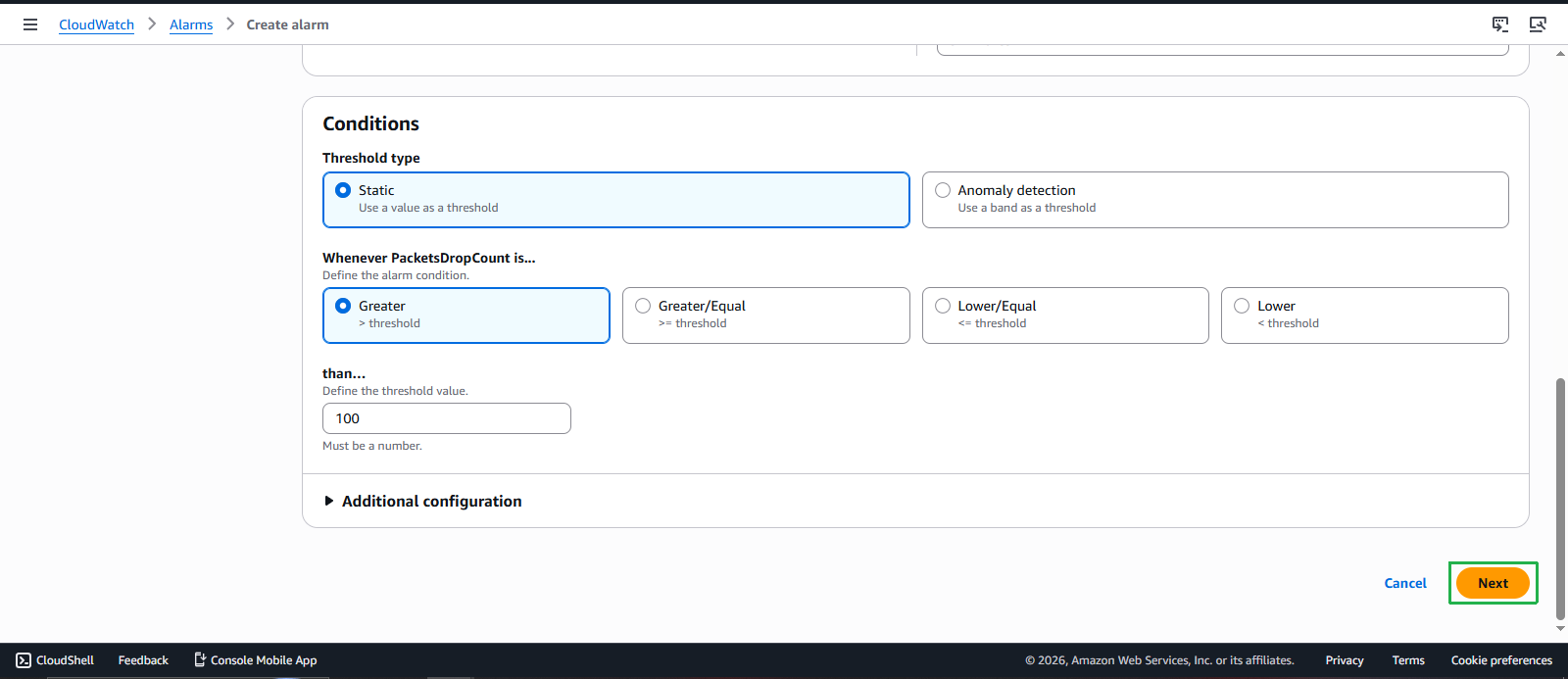
- Threshold type: Select Static
- Condition: Select Greater than
- Threshold value: Enter 100 (adjust based on your requirements)
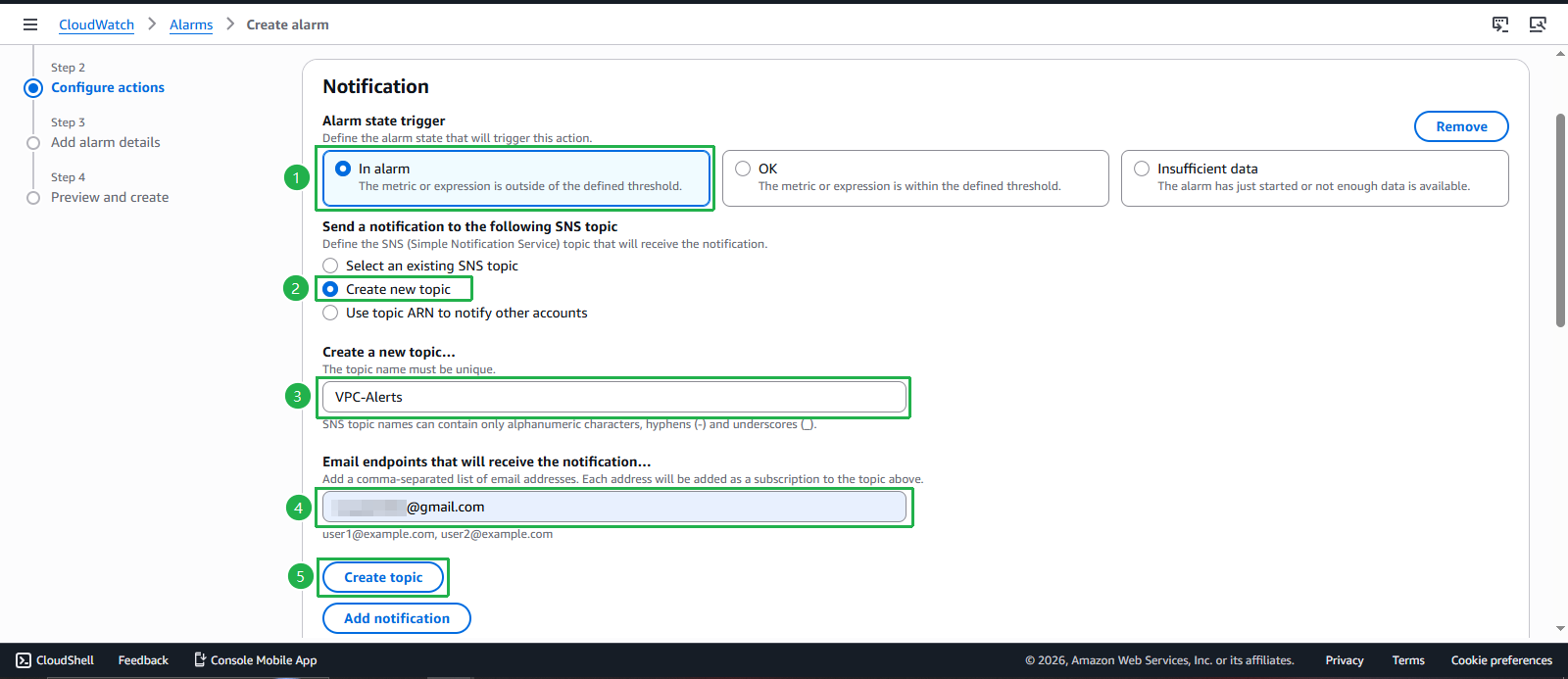
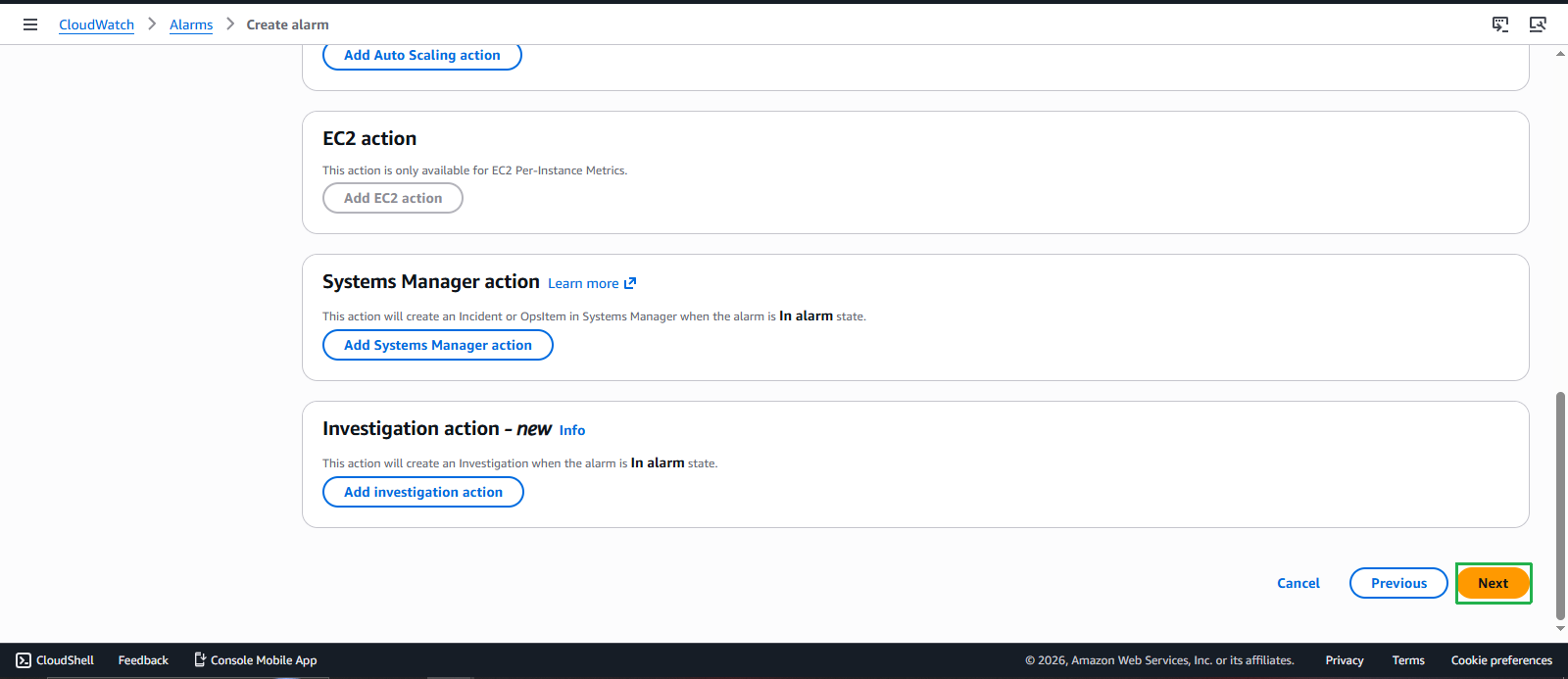
- Configure alarm actions:
- Alarm state trigger: Select In alarm
- SNS topic: Create new topic or select existing
- Topic name: Enter
VPC-Alerts - Email endpoints: Enter your email address
- Click Create topic
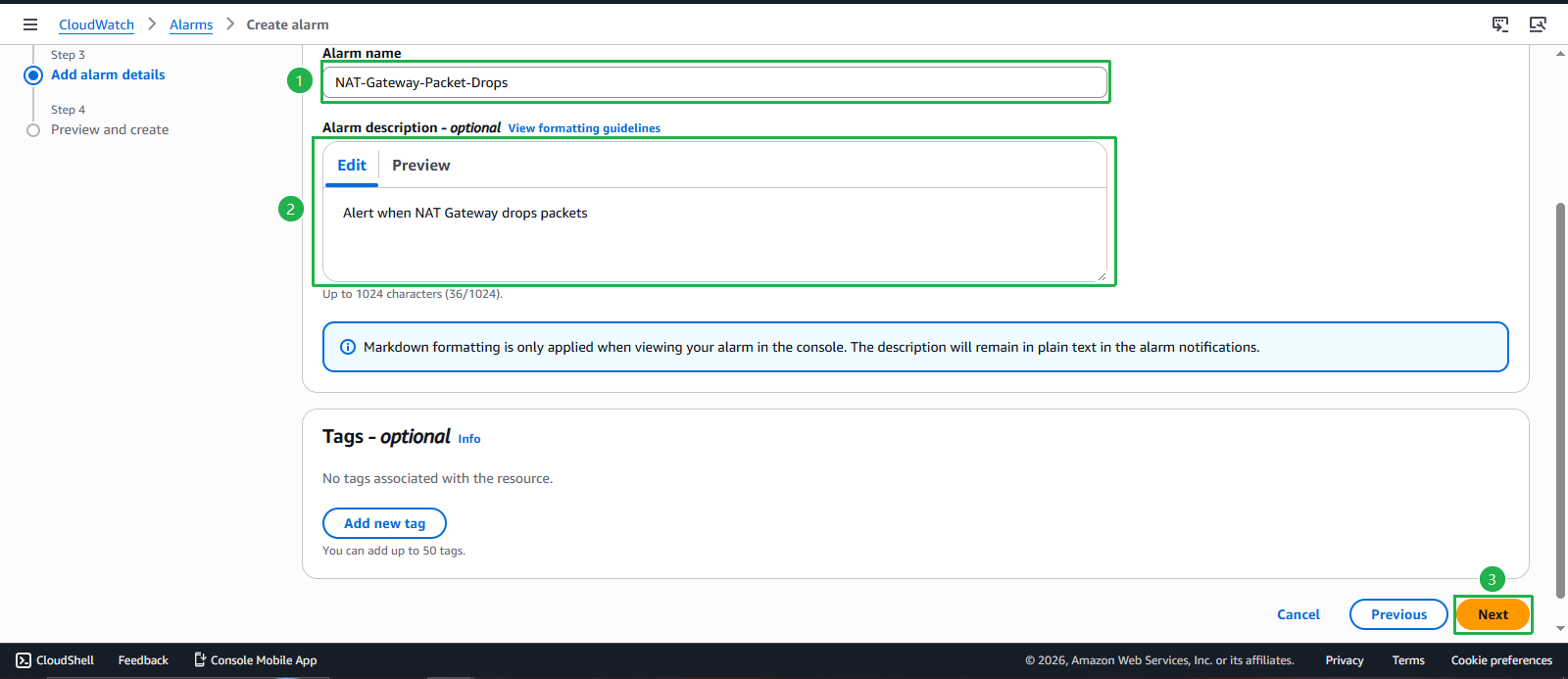
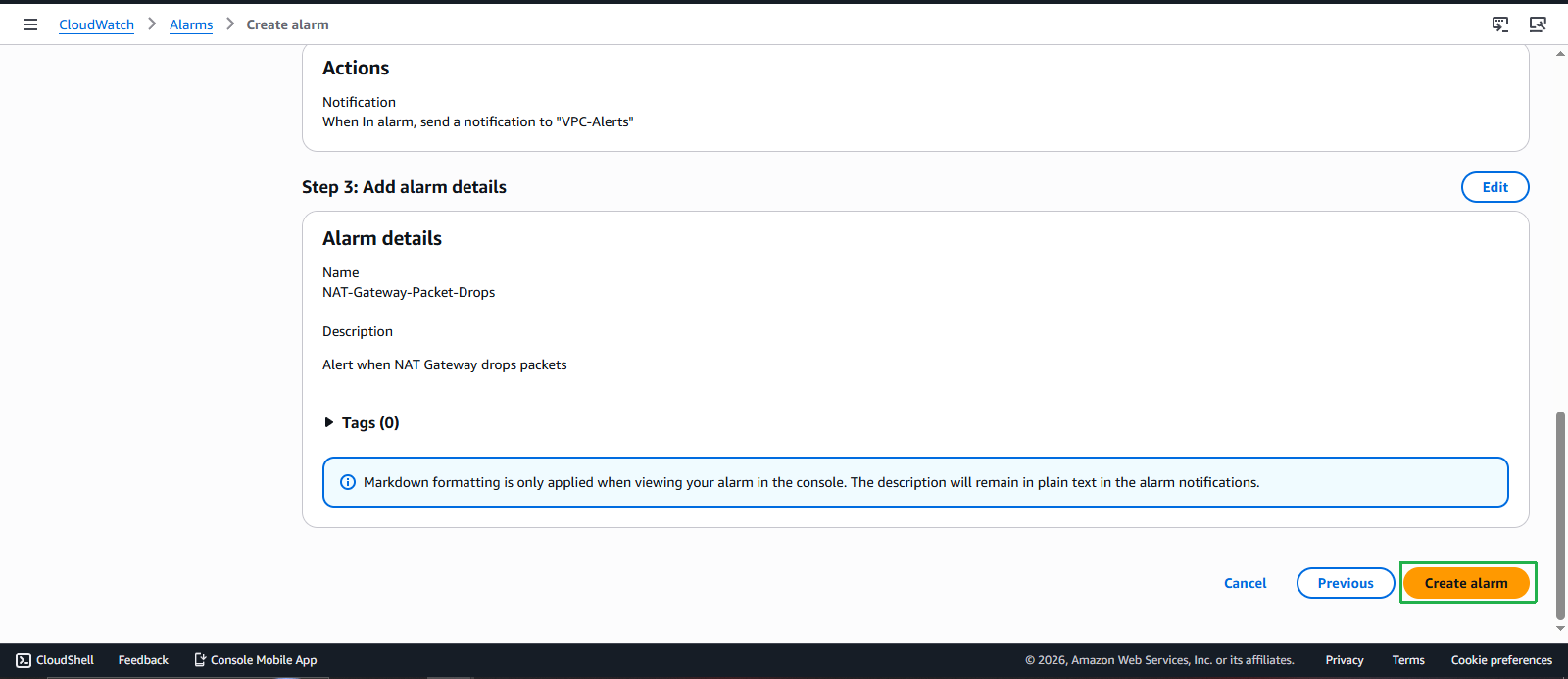
- Name and create the alarm:
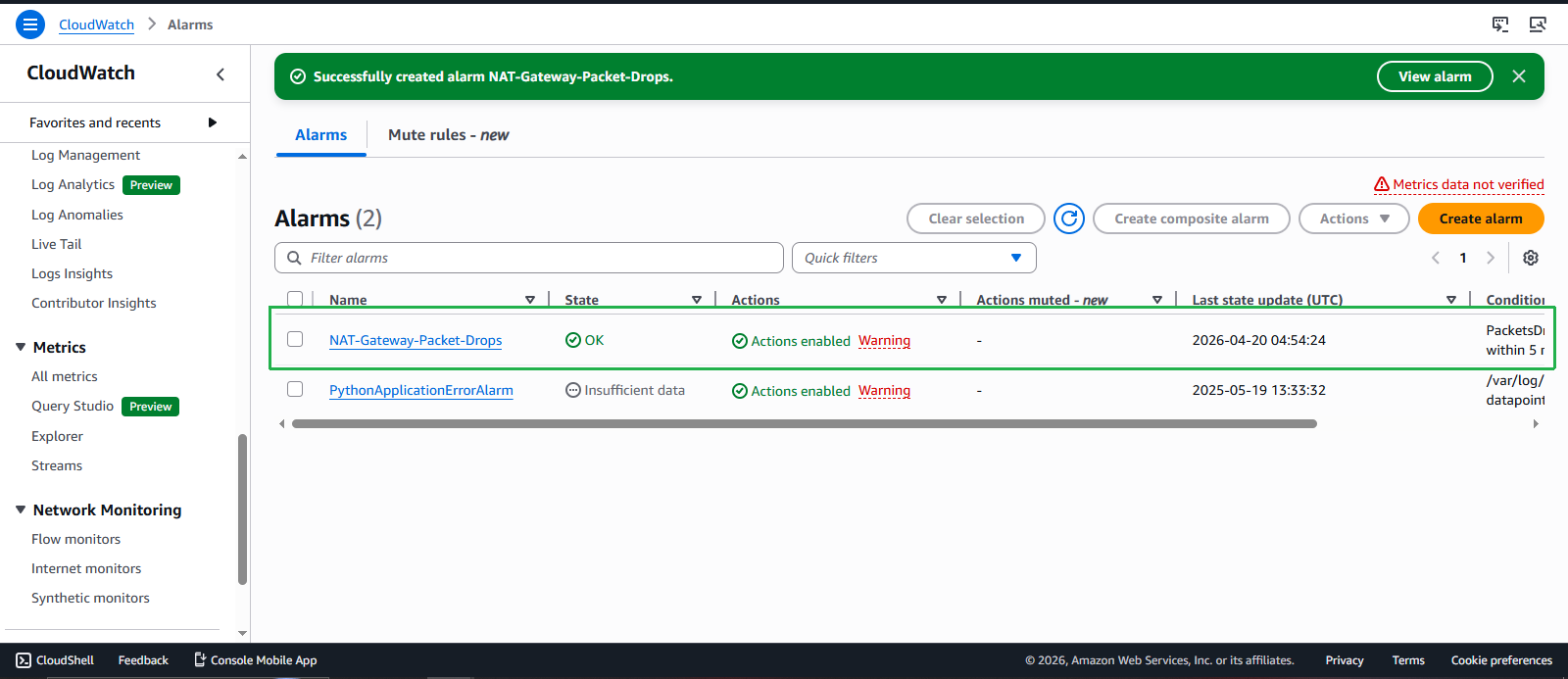
- Alarm name: Enter
NAT-Gateway-Packet-Drops - Alarm description: Enter
Alert when NAT Gateway drops packets - Click Create alarm
- Alarm name: Enter
VPC Flow Logs Analysis
- Create custom metric from Flow Logs:
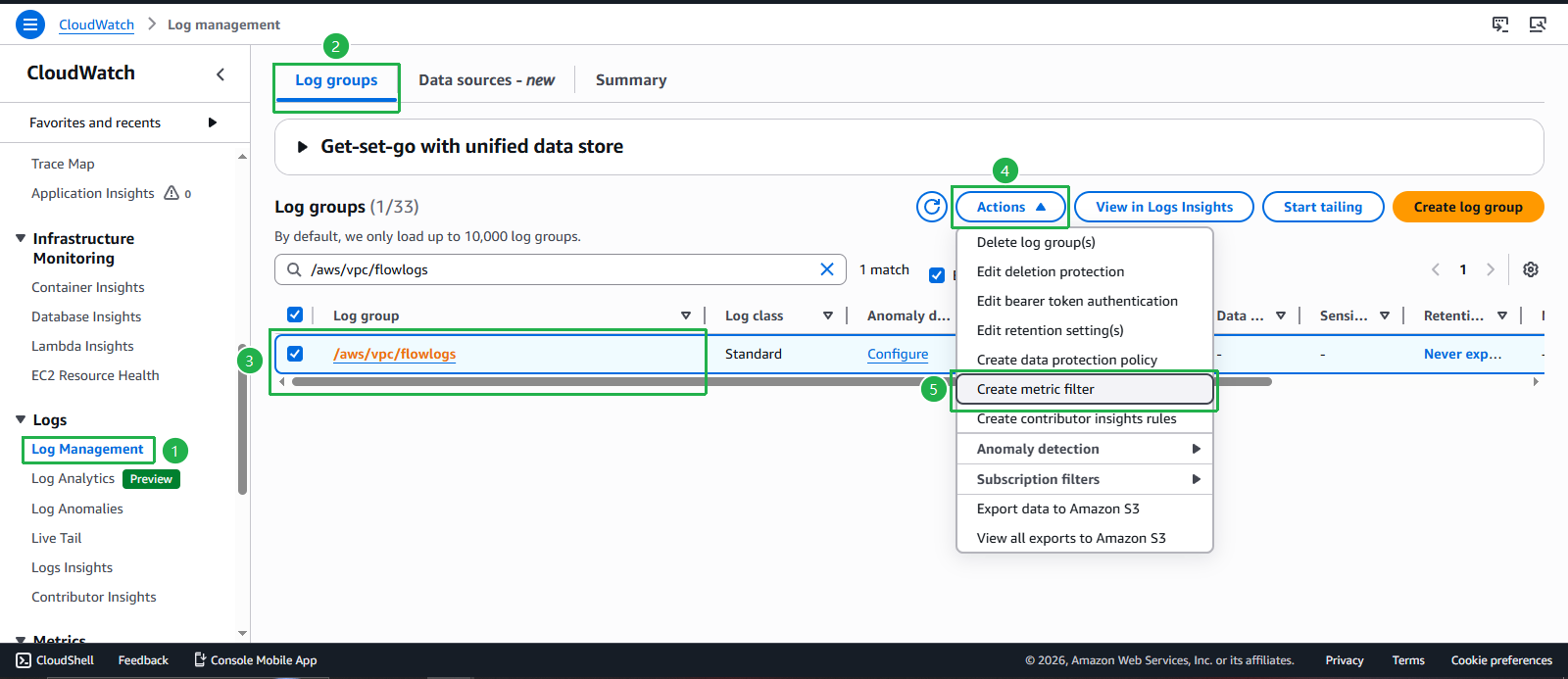
- Navigate to CloudWatch console
- Select Log groups
- Find
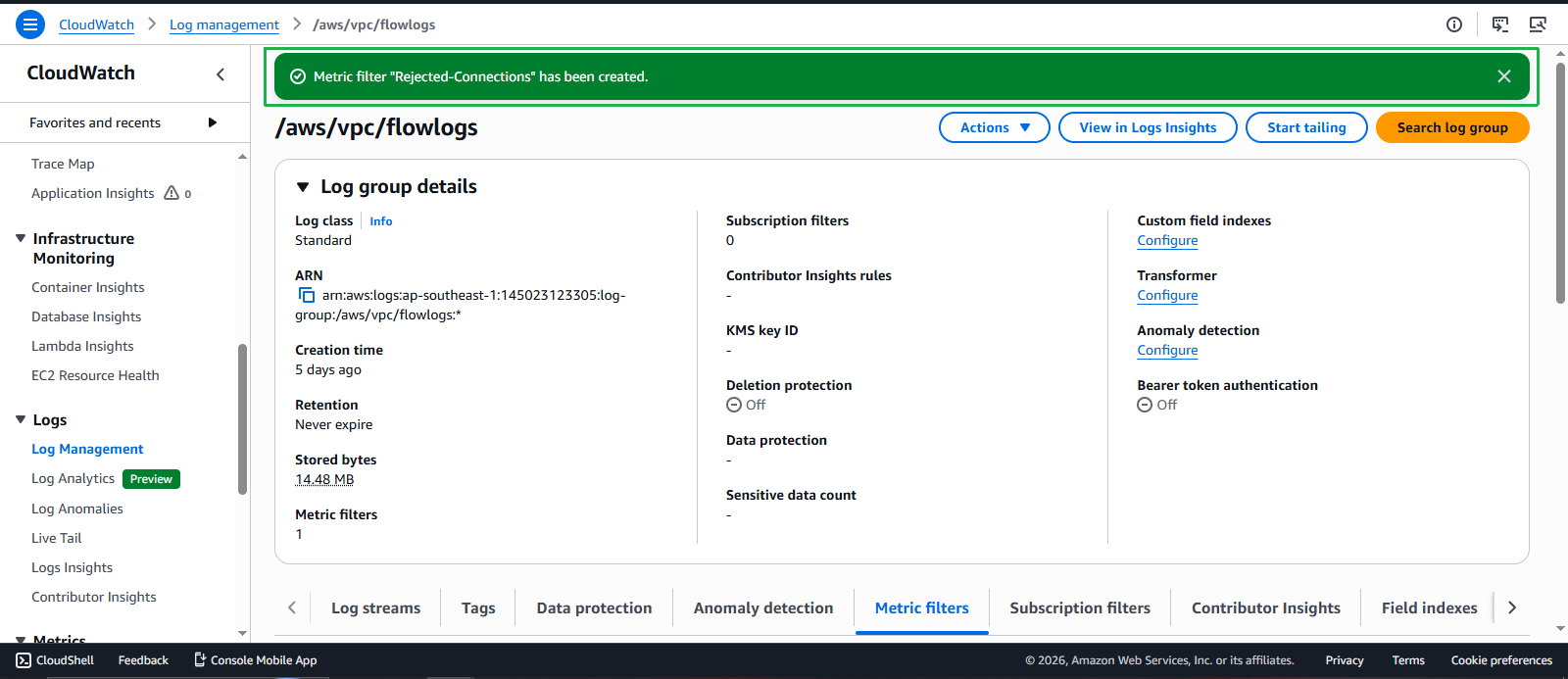
/aws/vpc/flowlogs - Click Create metric filter
- Configure metric filter for rejected connections:
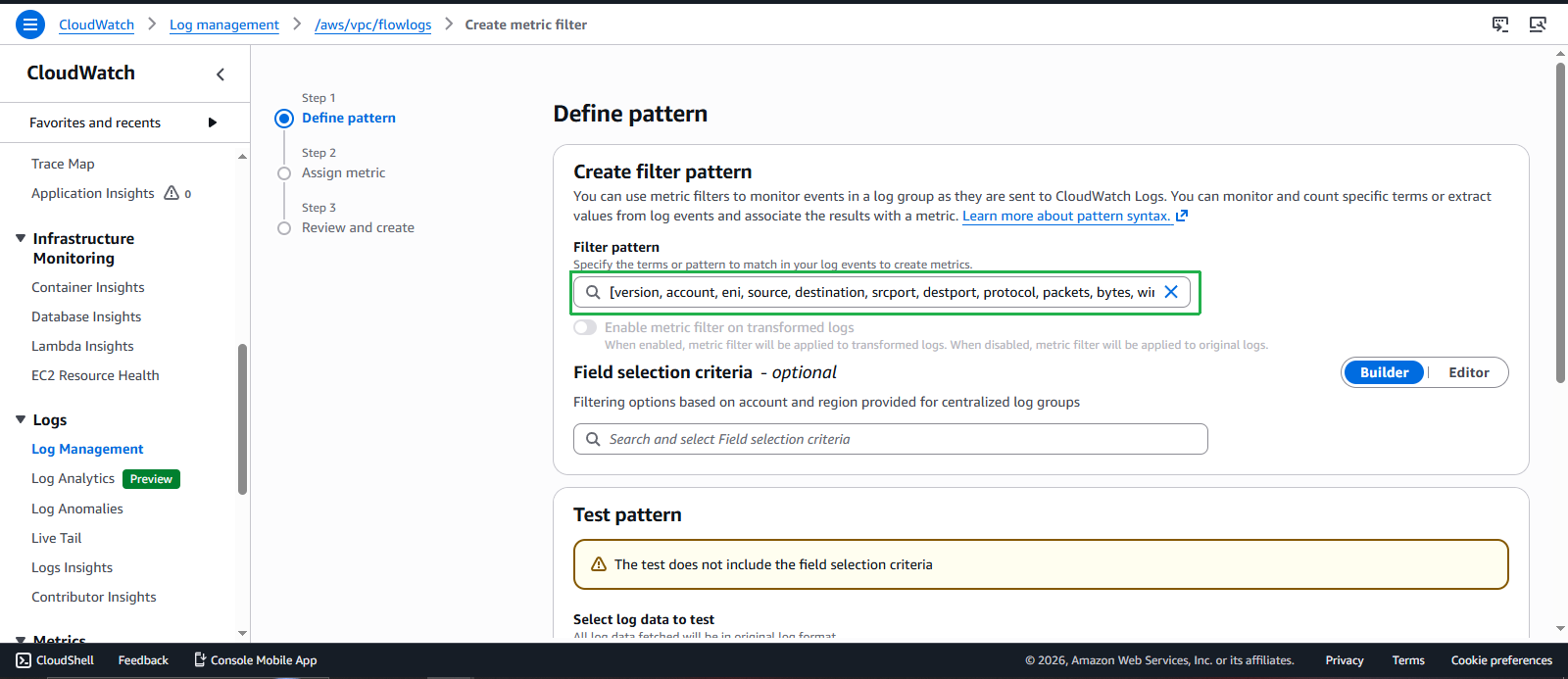
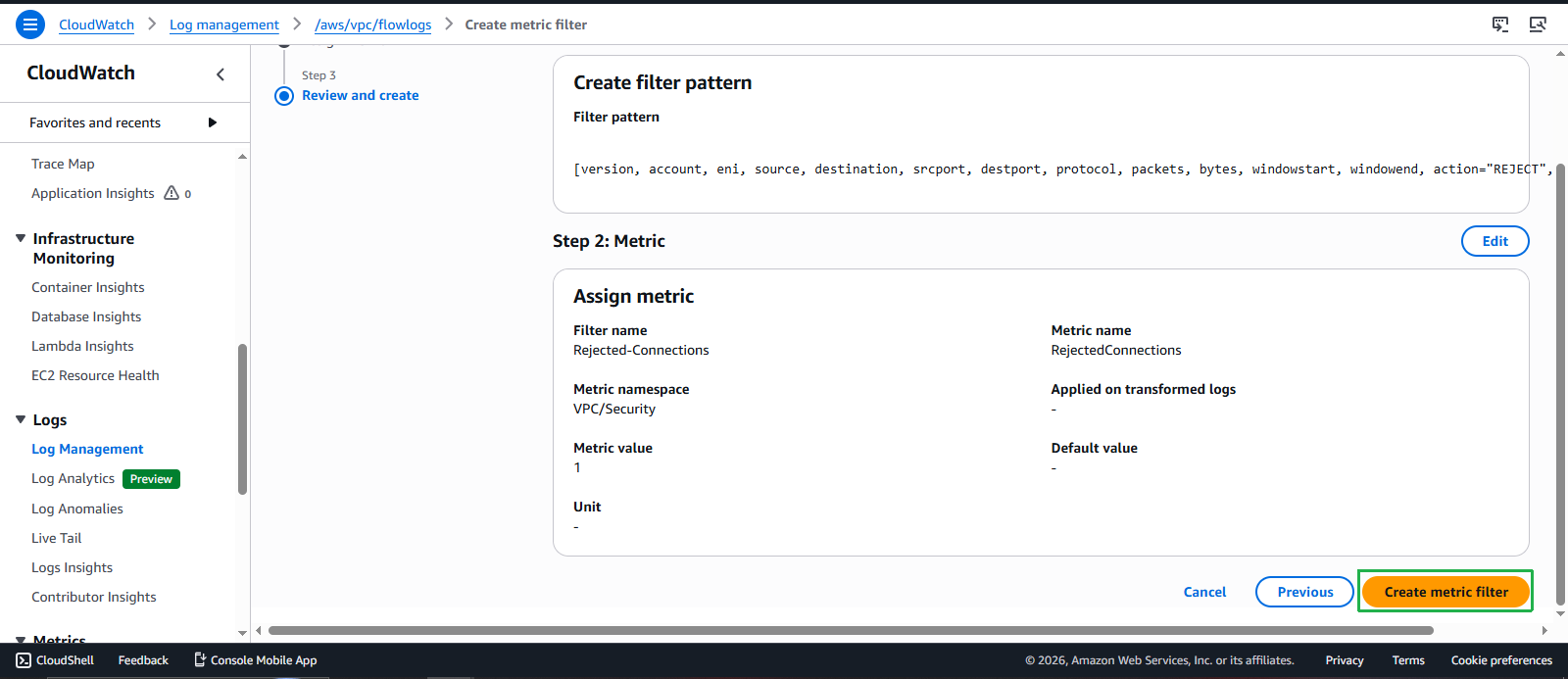
- Filter pattern: Enter
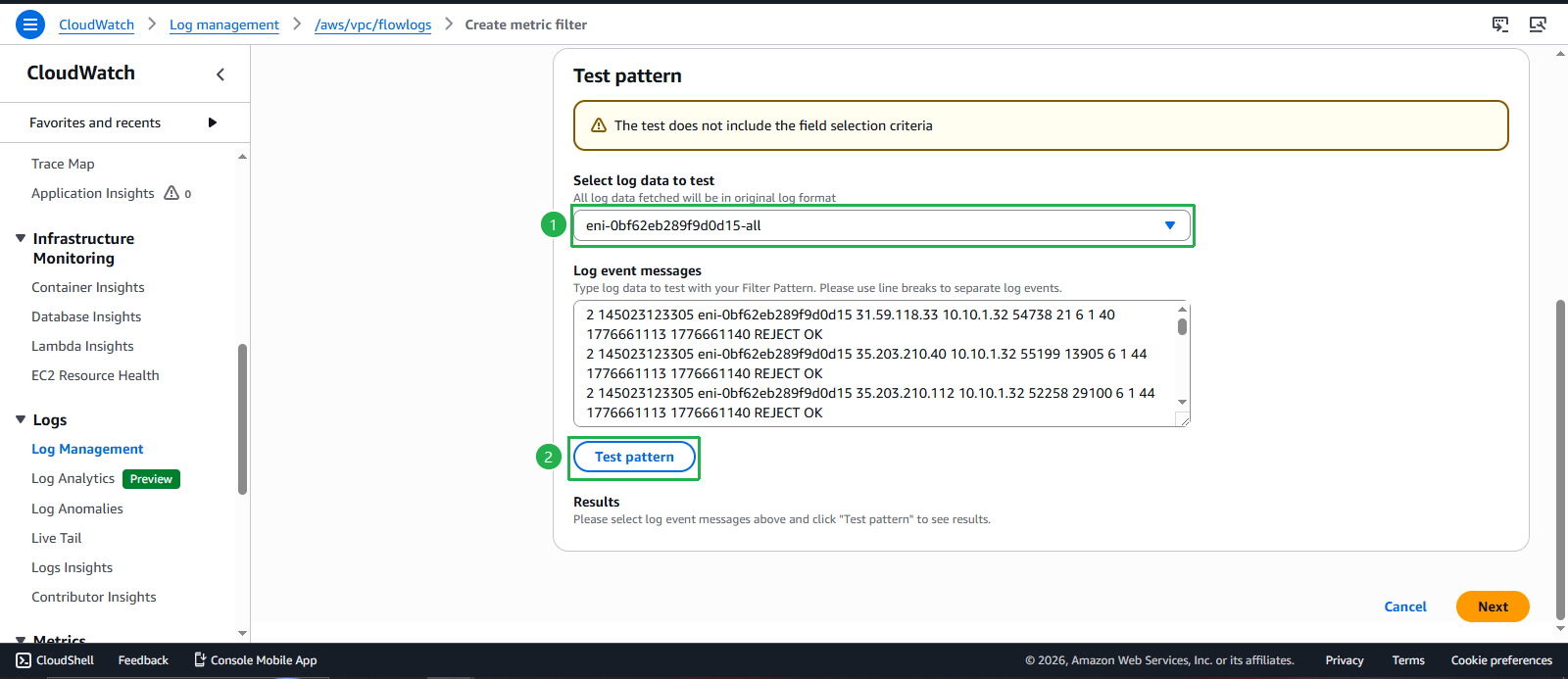
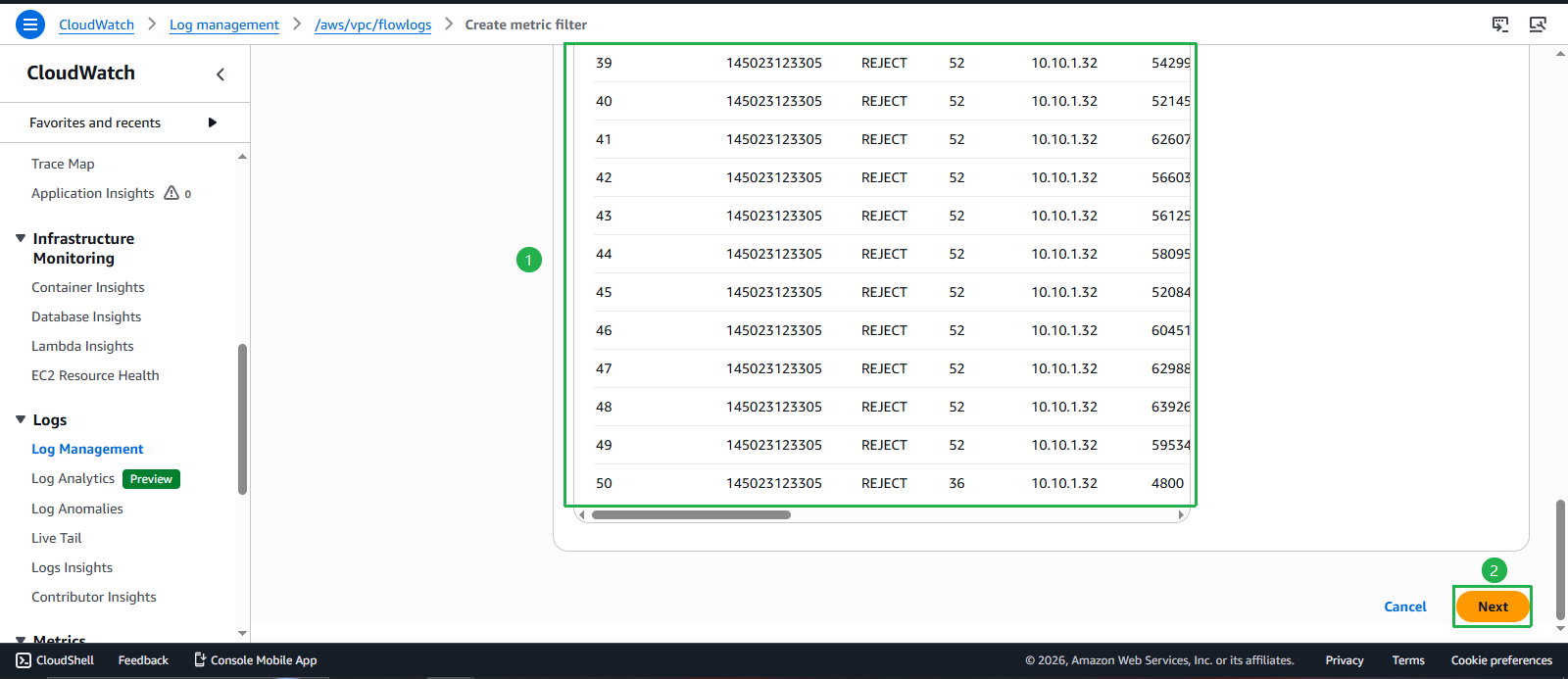
[version, account, eni, source, destination, srcport, destport, protocol, packets, bytes, windowstart, windowend, action="REJECT", flowlogstatus] - Test pattern: Click to test with sample data
- Click Next
- Filter pattern: Enter
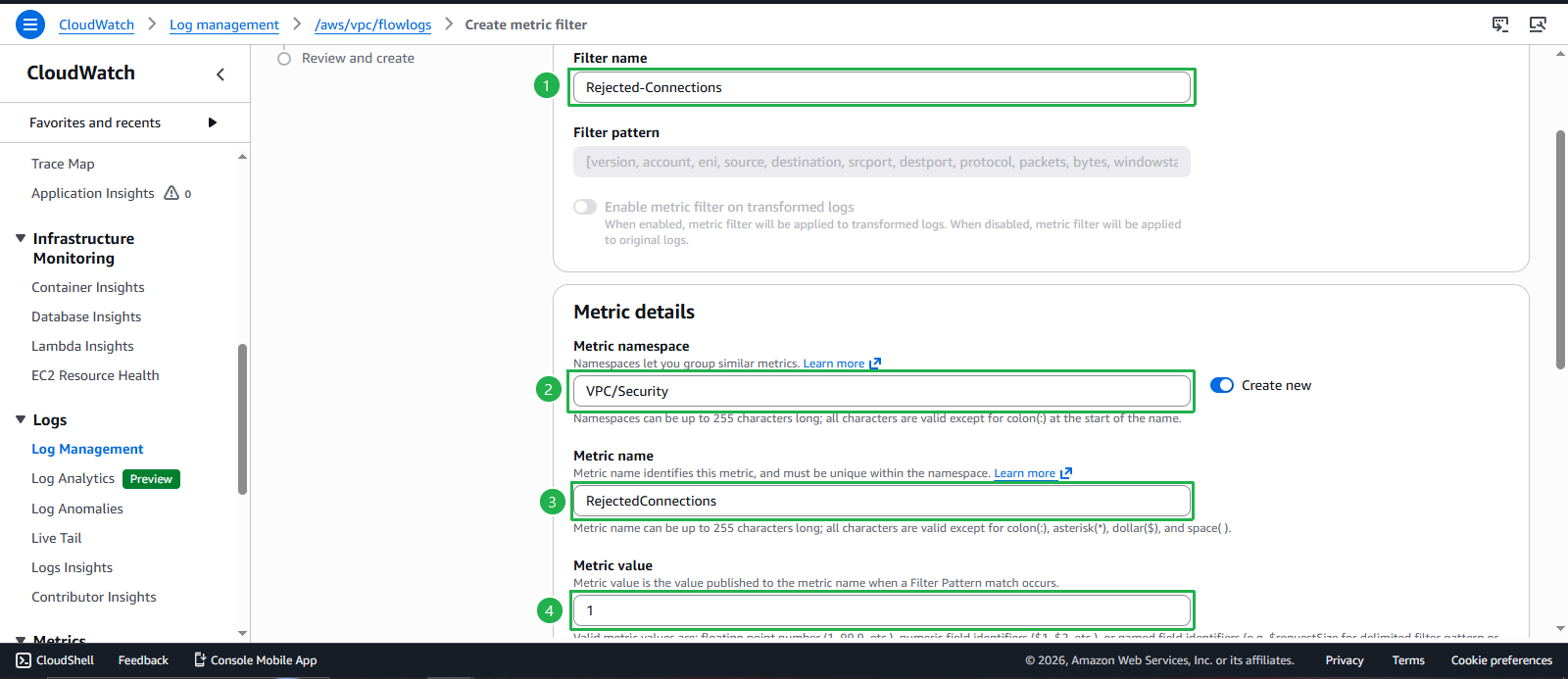
- Define metric details:
- Filter name: Enter
Rejected-Connections - Metric namespace: Enter
VPC/Security - Metric name: Enter
RejectedConnections - Metric value: Enter
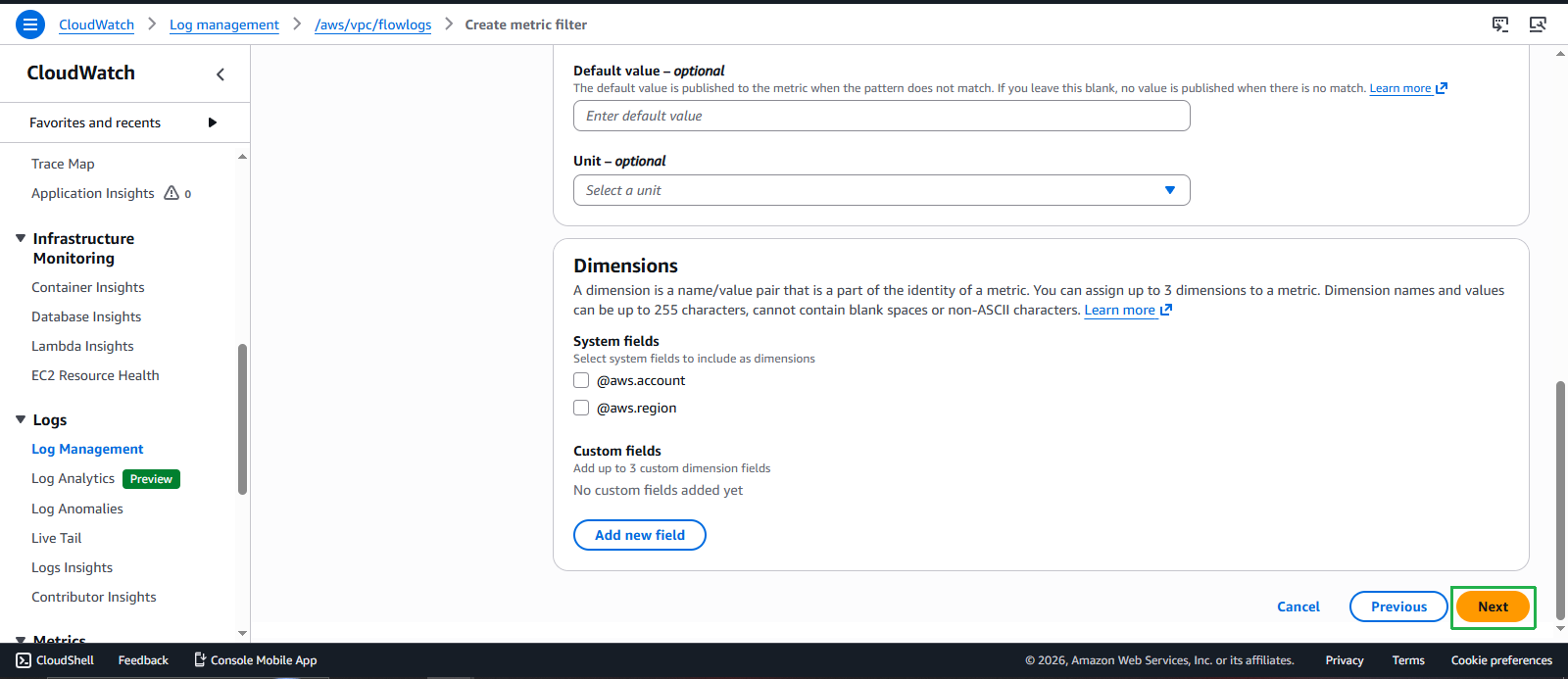
1 - Click Create metric filter
- Filter name: Enter
Dashboard Creation
- Create CloudWatch Dashboard:
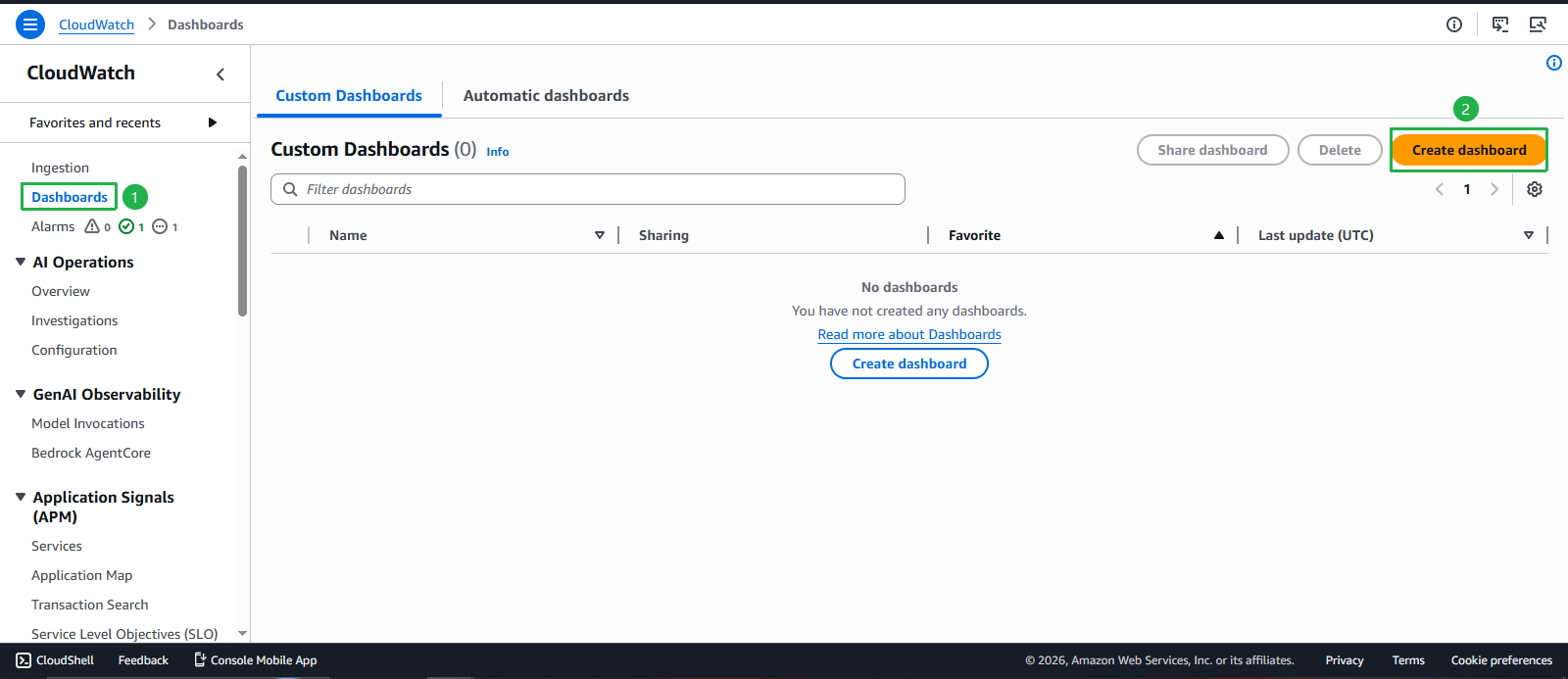
- Navigate to Dashboards
- Click Create dashboard
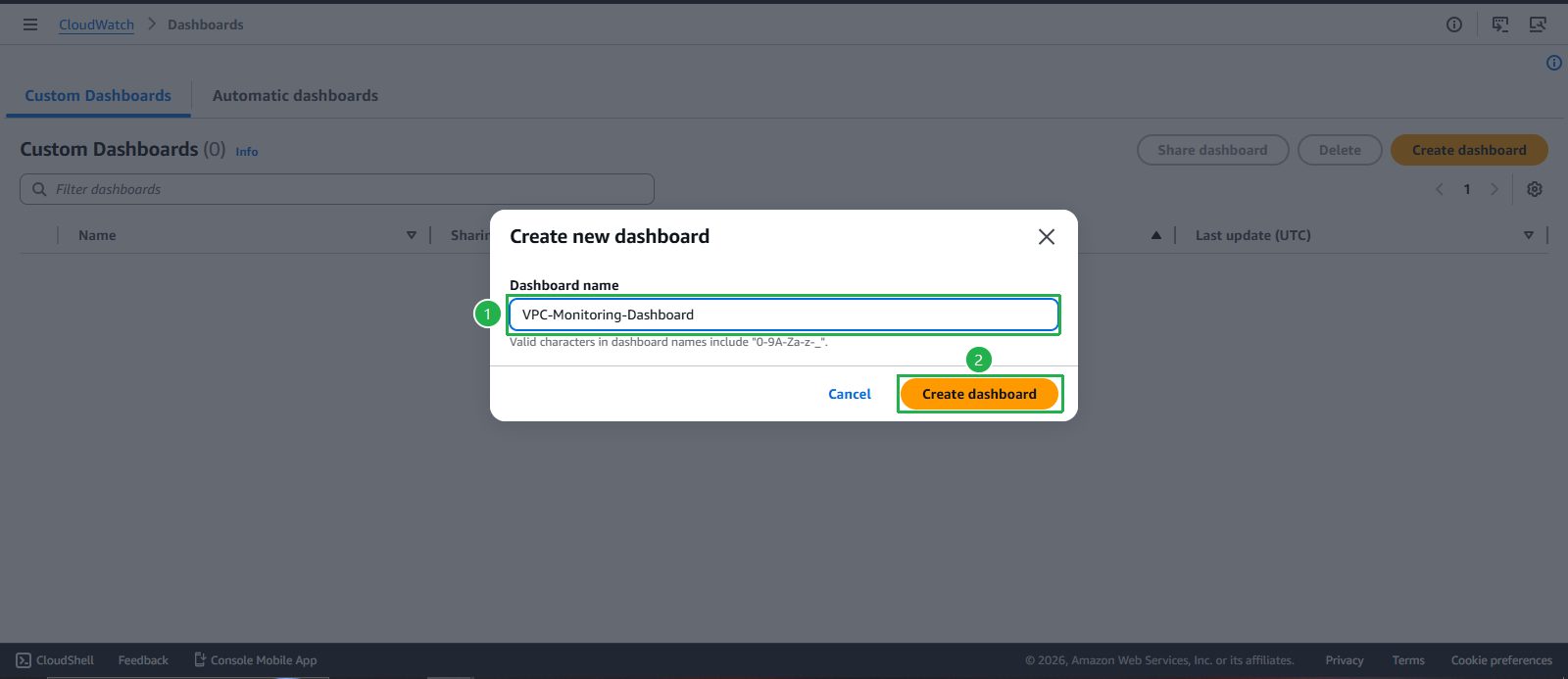
- Dashboard name: Enter
VPC-Monitoring-Dashboard - Click Create dashboard
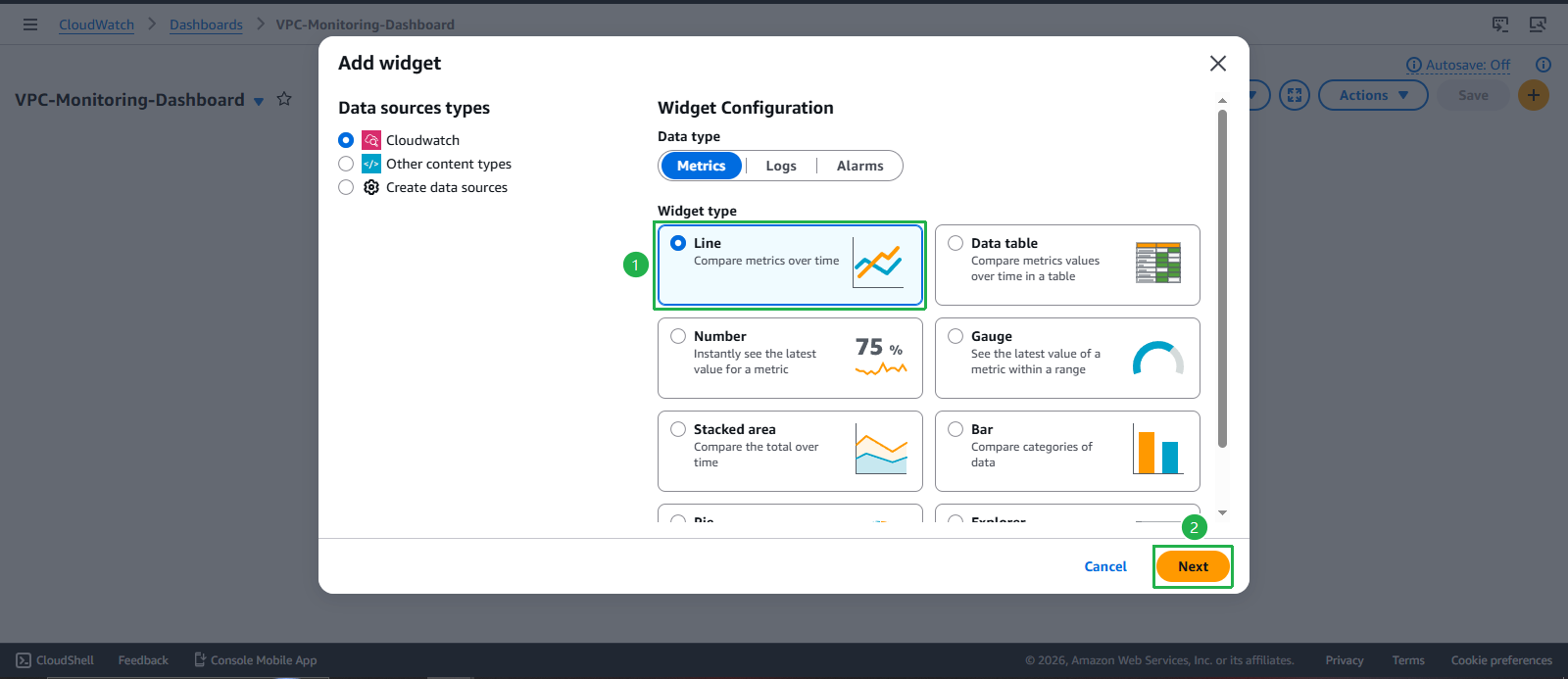
- Add widgets to dashboard:
- Click Add widget
- Select Line chart type
- Click Configure
- Configure dashboard widgets:
- Metrics: Add NAT Gateway metrics, VPN metrics, EC2 metrics
- Period: Set appropriate time periods
- Title: Give descriptive titles to each widget
- Click Create widget
- We will do the same with VPN metrics and EC2 metrics
Production Monitoring Best Practices
🔍 Essential Alarms for Production:
NAT Gateway Alarms:
  - PacketDropCount > threshold
  - ErrorPortAllocation > 0
  - ActiveConnectionCount > 80% of limit

VPN Connection Alarms:
  - TunnelState != UP
  - TunnelIpAddress changes

EC2 Instance Alarms:
  - CPUUtilization > 80%
  - NetworkPacketsIn/Out anomalies
  - StatusCheckFailed > 0
💡 Monitoring Strategy:
- Proactive: Set up predictive alarms before issues occur
- Comprehensive: Monitor all critical components
- Actionable: Ensure alarms lead to specific remediation steps
- Cost-Aware: Balance monitoring coverage with costs
🔒 Security Monitoring:
Flow Log Patterns to Monitor:
  - High volume of rejected connections
  - Unusual outbound traffic patterns
  - Connections to suspicious IP addresses
  - Port scanning attempts
  - Data exfiltration indicators
📊 Performance Baselines:
- Establish normal operating ranges for all metrics
- Set up anomaly detection for unusual patterns
- Create custom metrics for business-specific KPIs
- Implement automated responses where appropriate
💰 Cost Optimization:
- Use metric filters to reduce log storage costs
- Set appropriate retention periods for different log types
- Leverage CloudWatch Insights for complex queries
- Consider exporting data to S3 for long-term analysis
⚡ Operational Excellence:
- Create runbooks for common alarm scenarios
- Implement automated remediation where possible
- Regular review and tuning of alarm thresholds
- Integration with incident management systems